Automate Customer Support: Build a Ticket Triage System in n8n
To automate customer support, sort every incoming message by topic and urgency, answer the questions you already know the answer to, and send everything else to the right person with a deadline. That is called ticket triage, and it is the safest place to start because a person still handles anything that matters. Below is a free n8n workflow that does exactly this, tested on three real-style tickets.
Key takeaways
- Automate the sorting and the repeat answers, not the relationship. Anything unusual, angry or high-value should reach a person quickly.
- Our workflow sets a category, a priority and a reply deadline for every ticket, answers three common questions automatically and sends urgent tickets to an on-call inbox.
- Customers always get a confirmation with a ticket number, and automatic answers say they are automatic and invite a reply.
- Keyword rules are transparent and free. You can swap in an AI classifier later.
What should you automate in customer support?
| Task | Automate? | Why |
|---|---|---|
| Acknowledging every message with a ticket number | Yes | Customers know they were heard, and the team has a reference |
| Categorizing and setting priority | Yes | Fast, consistent and easy to audit |
| Answering repeat questions (password reset, invoice copies) | Yes, carefully | Saves hours; keep answers short and offer a human |
| Routing to the right team or on-call person | Yes | Removes waiting in a shared inbox |
| Refund decisions, complaints, cancellations of large accounts | No | Need judgment and empathy |
| Anything legal, safety or security related | No | Escalate immediately to a person |
Design the triage rules
Write the rules in plain language before you build them. Ours:
| Signal | Rule | Result |
|---|---|---|
| Category | Words like refund, charged, invoice mean billing; error, broken, crash mean technical; password, log in mean account; price, demo mean sales | Category label |
| Urgency | Words like urgent, outage, charged twice, cannot access | High priority |
| Customer value | Business or enterprise plan | High priority |
| Deadline | High priority: reply within 2 hours. Normal: within 8 hours | Shown to the team and the customer |
| Known question | Matches a saved question and priority is normal | Automatic answer |
Note that a known question with high priority is not answered automatically. A customer who is both urgent and asking a routine question deserves a person.
Build the workflow in n8n
You need n8n and an SMTP account (we used Mailpit for testing). Download the workflow (JSON) and import it, then choose your own email credential.
What does it cost to run? The software is free: self-hosted n8n may be used at no charge for internal business and personal use under its Sustainable Use License. You pay for somewhere to keep it running so it can respond at any hour, and for an SMTP account to send email (many providers have a free tier). n8n Cloud is a paid alternative.

Step 1: Receive the ticket
Add a Webhook node (POST, path support-ticket). Point your contact form, or a rule in your help desk, at its URL. It receives the customer’s name, email, subject, message and plan.
Step 2: Triage the message
Add a Code node that lower-cases the subject and message, tests them against your keyword lists, and produces the category, priority, deadline and, when it finds one, a saved answer:
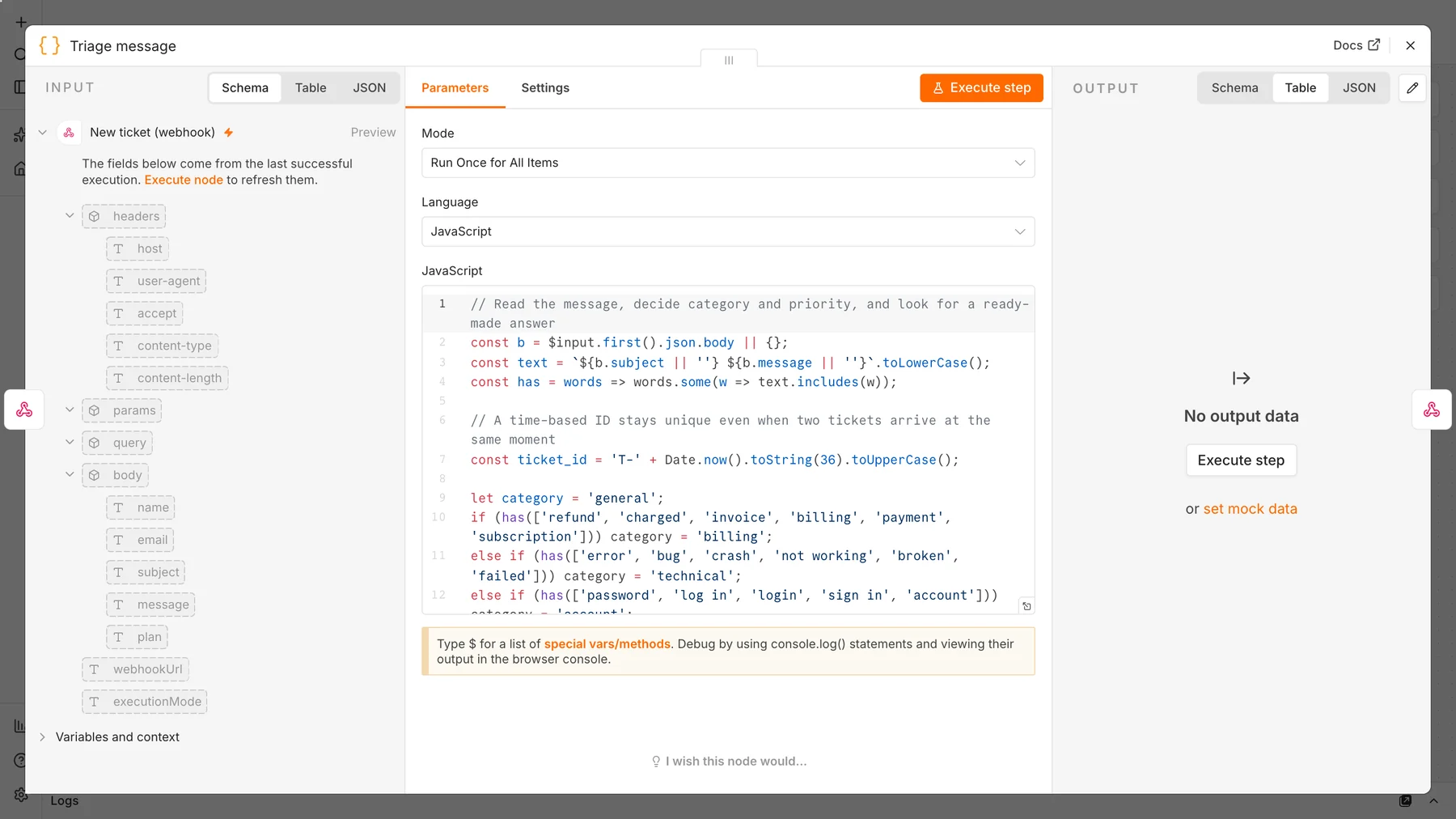
const urgent = has(['urgent', 'asap', 'immediately', 'outage', 'charged twice']);
const vip = ['business', 'enterprise'].includes(String(b.plan || '').toLowerCase());
const priority = urgent || vip ? 'high' : 'normal';

const FAQ = [
  { match: ['reset my password', 'forgot my password'],
    answer: 'You can reset your password from the login page: choose "Forgot password"...' },
];
const hit = FAQ.find(f => f.match.some(m => text.includes(m)));
const route = hit && priority === 'normal' ? 'faq' : 'person';
Give each ticket a unique ID. We first used a running counter, but two tickets arriving at the same moment received the same number, so the final version uses a time-based ID: 'T-' + Date.now().toString(36).toUpperCase().
Step 3: Answer the form, then decide
A Respond to Webhook node returns the ticket ID, category and priority at once. Then a Switch node sends the ticket down one of two paths: Ready-made answer or Needs a person.
Step 4: Send the right emails
- Ready-made answer: email the customer the answer, mention that it was sent automatically and invite a reply.
- Needs a person: email the team with the priority, category, deadline and message. High priority goes to the on-call address, normal priority to the shared inbox.
- Confirmation: email the customer their ticket number and the reply deadline.
The $json trap, again. Our first version sent the confirmation from the node after “Alert the team”, and the confirmations never arrived: after an email node, $json holds the email service’s response, not the ticket. The fix is to read the ticket from the earlier node by name, for example {{ $('Triage message').item.json.email }}. It is the same mistake we described in our lead-scoring workflow.
Step 5: Test three tickets
| Ticket | Result |
|---|---|
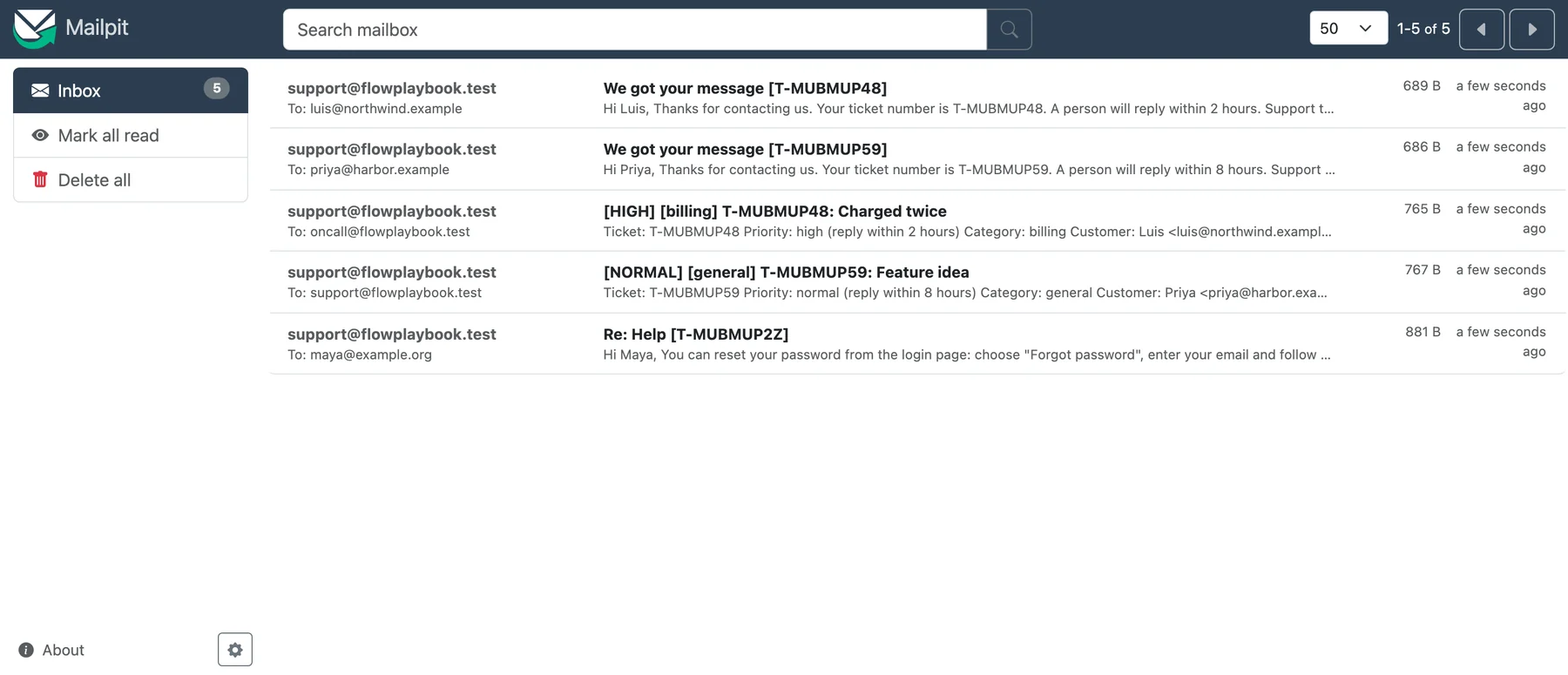
| “I forgot my password. How do I reset my password?” (free plan) | Category account, normal priority. Customer received the saved answer automatically. |
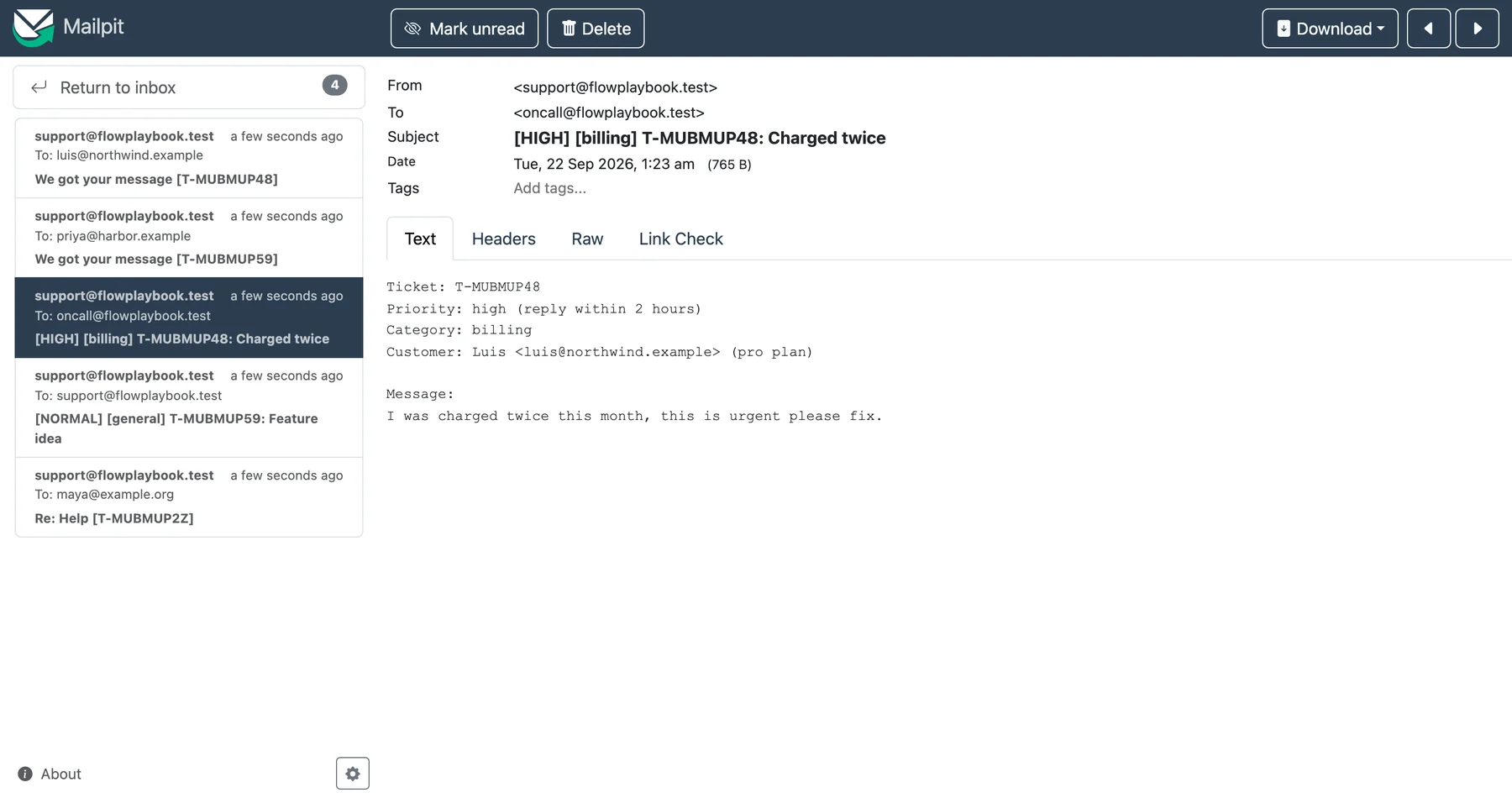
| “Charged twice this month, this is urgent” (pro plan) | Category billing, high priority. On-call inbox alerted; customer told to expect a reply within 2 hours. |
| “It would be great to have a dark mode” (free plan) | Category general, normal priority. Shared inbox alerted; customer told to expect a reply within 8 hours. |
Limits and how to improve it
- Keywords miss things. A customer who writes “my money keeps leaving” will not match “charged”. Review a sample of tickets each week and add words. For richer understanding you can replace the Code node with an AI classification step, but keep a person reviewing results and avoid sending sensitive customer data to a service you have not vetted.
- Connect your real channels. Feed the workflow from your help desk, contact form or a shared inbox instead of a test webhook, and write tickets into your help desk so the team sees one queue.
- Use business hours. Calculate the deadline in working time, not clock time.
- Escalate silence. Add a scheduled check that alerts a manager when a high-priority ticket has no reply near its deadline.
- Measure it. Track first-response time, the share of tickets answered automatically and how often customers reply “that didn’t help”.
Frequently asked questions
Can you automate customer support without a chatbot?
Yes. Ticket triage, automatic acknowledgements, saved answers and routing need no chatbot and are often safer, because a person handles everything the rules do not recognize.
What should never be automated in support?
Refund decisions, complaints, legal or security issues and high-value accounts should reach a person. Automate the sorting and the acknowledgement, not the judgment.
How do I keep automated replies from annoying customers?
Say plainly that the first reply is automatic, keep answers short and specific, always invite a reply and never trap customers in a loop with no way to reach a person.
Can I use AI to classify support tickets?
You can, using an AI node in place of the keyword rules. Test it on real examples, keep human review for anything unclear, and be careful about privacy, since ticket text often contains personal data.
Sources and further reading
- n8n Webhook node.
- n8n Switch node.
- n8n Code node.
- Mailpit, the test inbox used for the screenshots.