Invoice Approval Workflow: Build One in n8n with Approve and Reject Buttons
An invoice approval workflow routes each vendor invoice to the right person, waits for a yes or no, and records who decided what and when, before anything is paid. Most guides describe the idea. This one builds it in n8n: small invoices approve themselves, mid-size invoices go to a manager, large ones go to a finance director, and each approver decides with one click from an email. We tested every path.
Key takeaways
- Set an approval matrix first: who approves which amounts. Our example is up to $500 automatic, up to $5,000 manager, above that finance director. Change the numbers to fit your policy.
- n8n’s Send and Wait operation emails approve and reject buttons and pauses the workflow until someone clicks.
- Every decision is written to an audit log with a timestamp, and duplicate or incomplete invoices are stopped at intake.
- The workflow stores records in n8n’s built-in storage, which is fine for a pilot. Use a database or your accounting system in production.
Start with an approval matrix
Every approval workflow is a policy written as rules. Decide the rules before you build anything. Here is the matrix we use in the workflow (the amounts and roles are examples; use your own):
| Invoice amount | Who decides | How |
|---|---|---|
| Up to $500 | Nobody (automatic) | Approved on arrival, logged as “auto-approved” |
| $501 to $5,000 | Manager | Email with Approve and Reject buttons |
| Over $5,000 | Finance director | Email with Approve and Reject buttons |
| Duplicate or incomplete | Nobody | Rejected at intake; the submitter is told why |
- Separate duties. The person who submits an invoice should never be able to approve it.
- Stop duplicates early. Reject a repeated invoice number before anyone spends time on it.
- Keep a trail. Record every event with a timestamp and the approver’s address.
Build the workflow in n8n
You need n8n and an SMTP account (we used Mailpit as a test inbox). Download the workflow (JSON) and import it, then choose your own email credential on each email node.
What does it cost to run? The software is free: self-hosted n8n may be used at no charge for internal business and personal use under its Sustainable Use License. You pay for somewhere to keep it running, because approvals only work while n8n is up, and for an SMTP account to send email (many providers have a free tier). n8n Cloud is a paid alternative.

Step 1: Receive the invoice and decide the route
Add a Webhook node (POST, path submit-invoice) that your form or accounting tool calls with the invoice number, vendor, amount and submitter. A Code node then validates it, checks for a duplicate and applies the matrix. The limits and approver addresses sit at the top so a finance person can edit them:
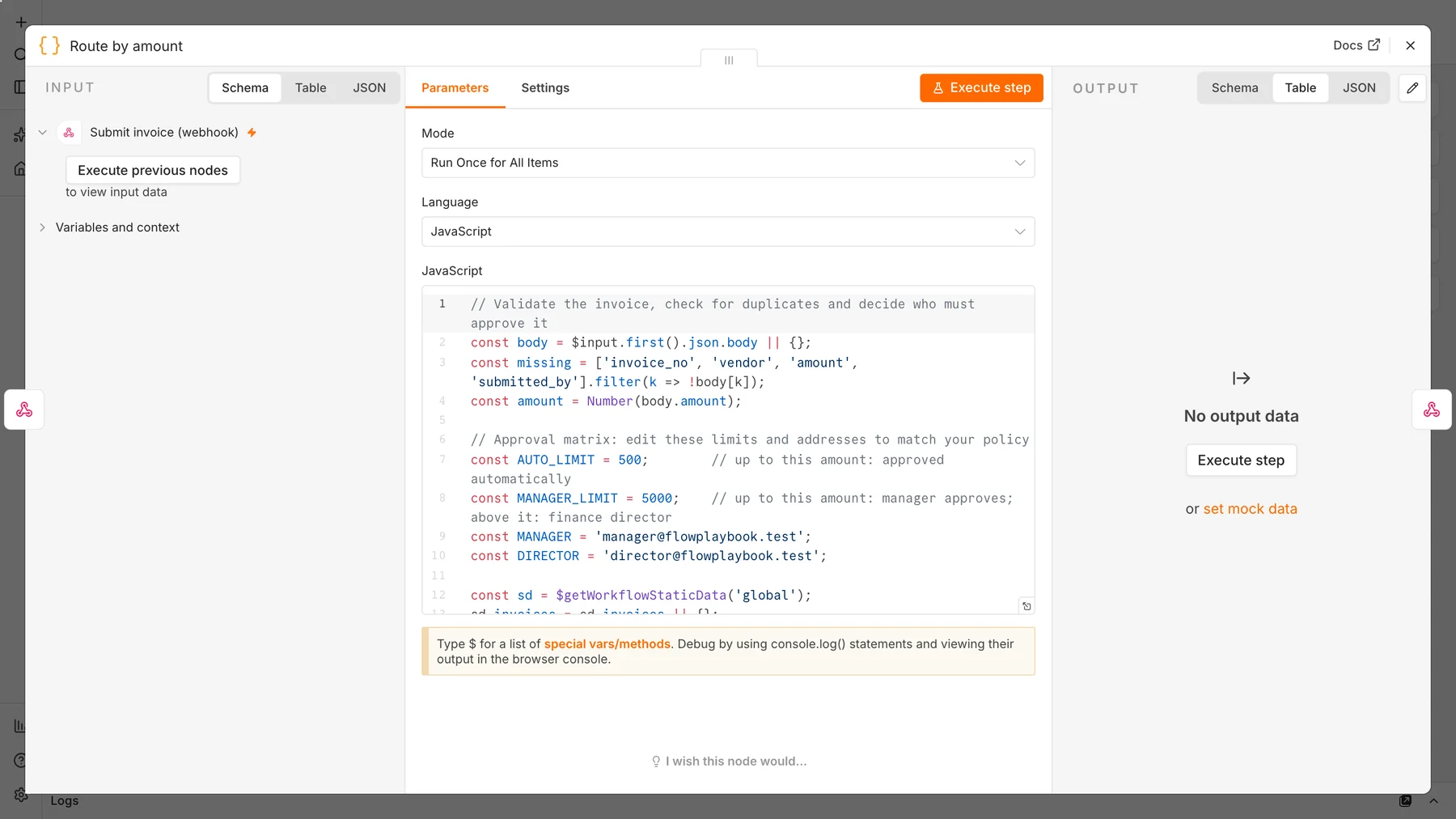
const AUTO_LIMIT = 500;        // up to this amount: approved automatically
const MANAGER_LIMIT = 5000;    // up to this amount: manager; above it: finance director
const MANAGER = 'manager@example.com';
const DIRECTOR = 'director@example.com';

let route;
if (missing.length || !(amount > 0)) route = 'invalid';
else if (sd.invoices[body.invoice_no]) route = 'duplicate';
else if (amount <= AUTO_LIMIT) route = 'auto';
else route = 'approval';
Step 2: Reply to the submitter, then branch
Add a Respond to Webhook node so the submitter gets an immediate answer such as {"status":"approval","approver":"manager@example.com"}. Then add a Switch node with three outputs: Auto-approve, Needs approval and a fallback called Rejected at intake for duplicates and incomplete invoices. Each output ends in an email: to accounts payable, to the approver, or back to the submitter.
Step 3: Ask the approver with Send and Wait
On the approval branch, add a Send Email node and set its operation to Send and Wait for Response (see the Send Email documentation). Choose the response type Approval, keep the Approve and Reject buttons, and set the recipient to the approver address from Step 1. n8n emails the buttons and pauses that execution until a button is clicked.

Good to know: n8n deliberately ignores clicks that look like automated link scanners, so a security tool that pre-fetches links in an email cannot approve an invoice by accident. In our own tests, a script identifying itself as a bot did nothing until it used a normal browser identity, exactly as a person’s click would.
Step 4: Record the decision and tell everyone
After the wait, an If node checks {{ $json.data.approved }}. On true, a Code node marks the invoice approved and logs who approved it, and an email tells accounts payable it is ready to pay. On false, another Code node logs the rejection and an email tells the submitter. Both Code nodes read the original invoice with $('Route by amount').item.json, because after the wait $json only holds the answer.
Step 5: Add an audit-log endpoint
A second webhook (GET, path invoice-status) looks up an invoice and returns its status and history. Auditors and finance staff can query it at any time:
GET /webhook/invoice-status?invoice_no=INV-2002

{"invoice_no":"INV-2002","vendor":"Northwind Cloud","amount":2400,"status":"approved",
 "approver":"manager@flowplaybook.test",
 "log":[{"at":"2026-09-21T19:26:26Z","event":"Sent to manager@flowplaybook.test for approval"},
        {"at":"2026-09-21T19:26:41Z","event":"Approved by manager@flowplaybook.test"}]}
Step 6: Test every path
| Invoice | Amount | Result |
|---|---|---|
| INV-2001 | $250 | Approved automatically, accounts payable notified |
| INV-2002 | $2,400 | Manager approved; accounts payable notified; audit log shows both events |
| INV-2003 | $8,900 | Finance director rejected; submitter notified |
| INV-2002 again | $2,400 | Rejected at intake as a duplicate |
| INV-2004 | (none) | Rejected at intake: missing fields |

Three problems we hit
- The
$jsontrap. After a Send Email node,$jsonholds the email service’s response, not your invoice. Refer to earlier nodes by name. (We covered the same trap in our lead-scoring guide.) - Lost writes. We first submitted five invoices within a few milliseconds and two audit records went missing, because simultaneous runs overwrote each other’s stored data. Real approval systems need a database or your accounting system as the record of truth. Spaced-out submissions worked correctly.
- Clicks from scanners. Some email security tools open every link. n8n’s bot protection handles this, but always test approvals by clicking from a real browser.
Before you use it for real invoices
- Use real storage. Keep invoices in a database, Google Sheets, Airtable or your accounting software instead of workflow storage.
- Add reminders and escalation. Use the node’s wait-time limit to remind an approver after a day and escalate after three.
- Attach the invoice. Link the PDF or scan in the approval email so approvers can check it.
- Protect the webhook. Require a secret header so only your systems can submit invoices.
- Look up approvers. Replace the two fixed addresses with a lookup by department or cost center.
- Pay from your accounting system. Send the approved result on to QuickBooks, Xero or your bank workflow.
Frequently asked questions
What is an invoice approval workflow?
It is the set of steps an invoice follows before payment: intake and checks, routing to the right approver, a decision, and a record of that decision. Automation makes the routing and record-keeping consistent.
How do I set approval limits?
Base them on risk and your policy. Many small businesses use a low automatic limit, a manager tier and a senior tier for large amounts. Review the limits each year and after any fraud or error.
Can n8n approve invoices from email?
Yes. The Send Email node’s Send and Wait operation sends Approve and Reject buttons and pauses the workflow until the approver clicks.
Is workflow storage safe for accounting records?
It is fine for a pilot, but simultaneous runs can overwrite each other. For real accounting records use a database or your accounting software, and back it up.
Sources and further reading
- n8n Send Email node (Send and Wait for Response).
- n8n Switch node.
- n8n Webhook node.
- Mailpit, the test inbox used for the screenshots.