n8n Error Handling: Build an Error Workflow That Alerts You When a Run Fails
n8n error handling starts with a second workflow that runs whenever your main workflow fails and tells you what broke. We built one on a local n8n install, made another workflow fail on purpose every minute and watched the alert fire. We also hit one setting that stops the whole thing from working.
- An error workflow starts with an Error Trigger and receives the failure details.
- It must be published, or n8n logs that it is not active and skips it.
- Manual test runs never trigger it; only automatic executions do.
- Our handler produced a readable alert for every failed run.
How n8n error handling works
n8n error handling relies on a second workflow. When your main workflow fails, n8n runs an error workflow that starts with an Error Trigger. That workflow receives details of the failure, so you can send an alert instead of finding out days later.
Two facts matter before you build. The error workflow only runs for automatic executions, not for a manual test click. And, as we found, it must be published or it will not run at all.
Build the error workflow
Make sure n8n is running. Our free n8n setup guide covers the install. Then create two workflows.
Error Trigger
Starts the error workflow and receives the failure details.
Catch
Format Alert
A Set node builds one readable sentence from the error data.
Format
Send alert
Swap our placeholder for a Slack or email node.
Alert
Link it
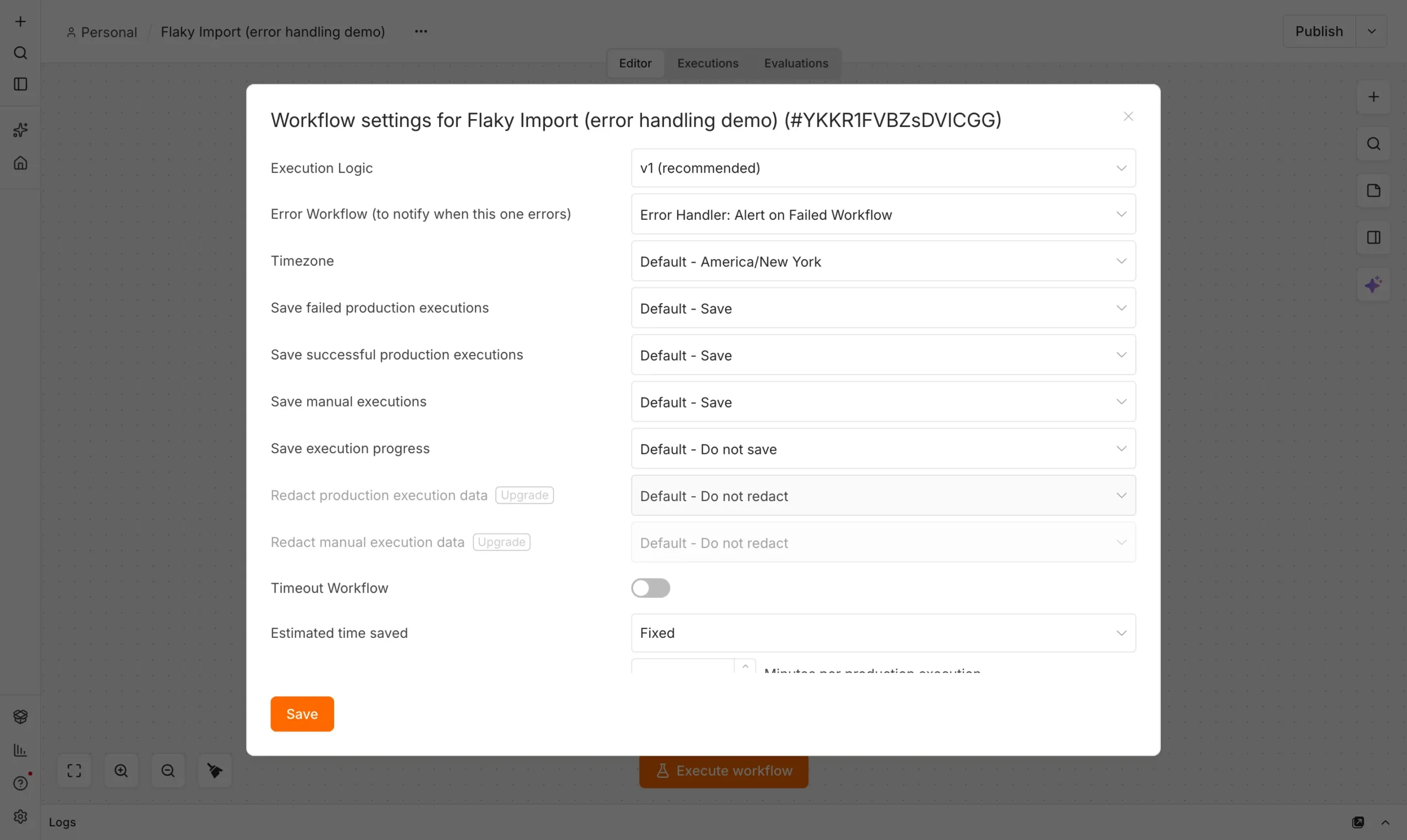
Choose this workflow as the Error Workflow in the failing workflow’s settings.
Connect
The Format Alert node uses two expressions to build the message:
Workflow "{{ $json.workflow.name }}" failed at node "{{ $json.execution.lastNodeExecuted }}": {{ $json.execution.error.message }}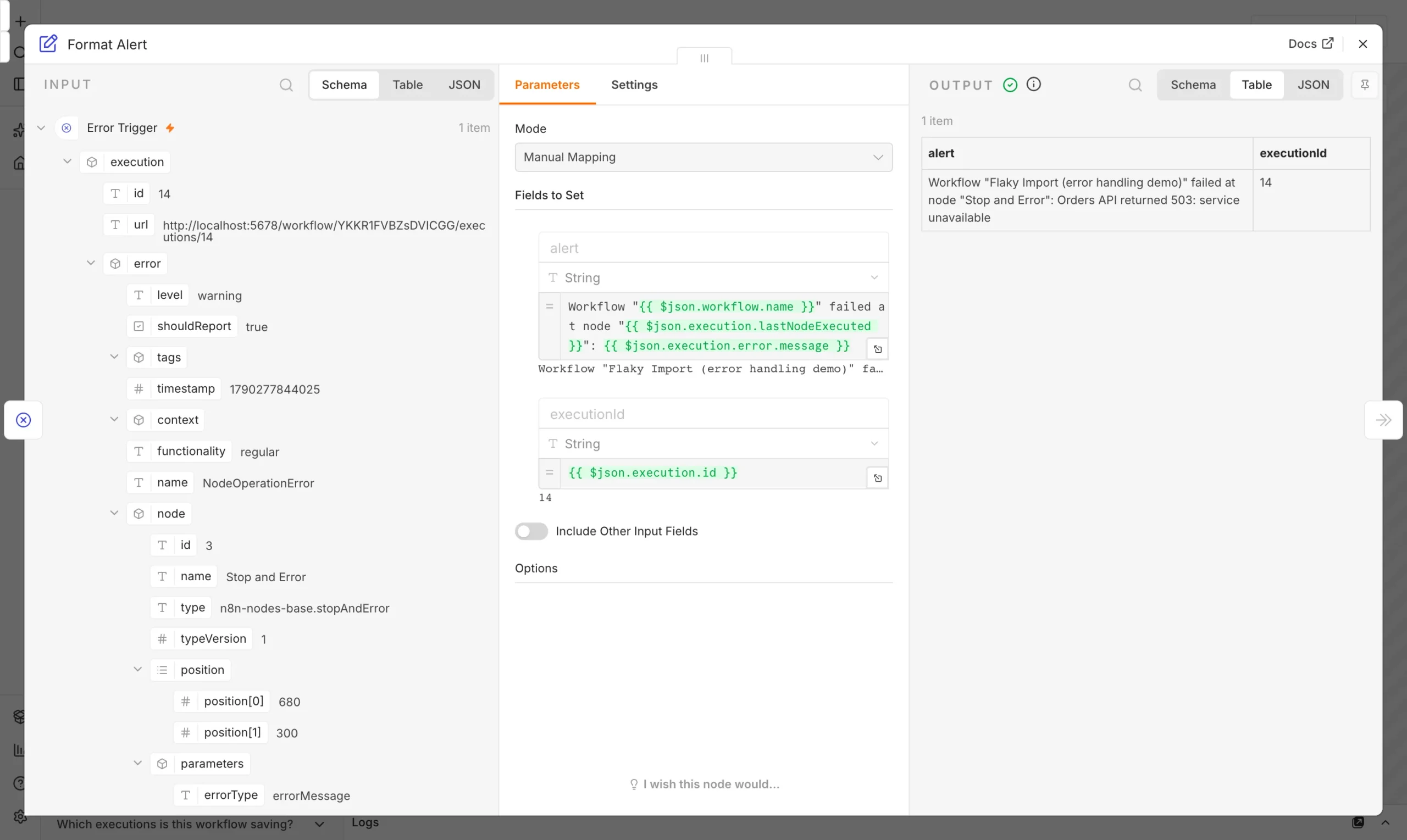
Connect it to a failing workflow
Open the workflow you want to watch, choose Settings and pick your handler in the Error Workflow field. Save it. Our demo workflow runs every minute and ends with a Stop and Error node that fails on purpose with the message Orders API returned 503.
What happened when we ran it
We published the demo so it ran on a schedule. Every run failed at the Stop and Error node, as planned.
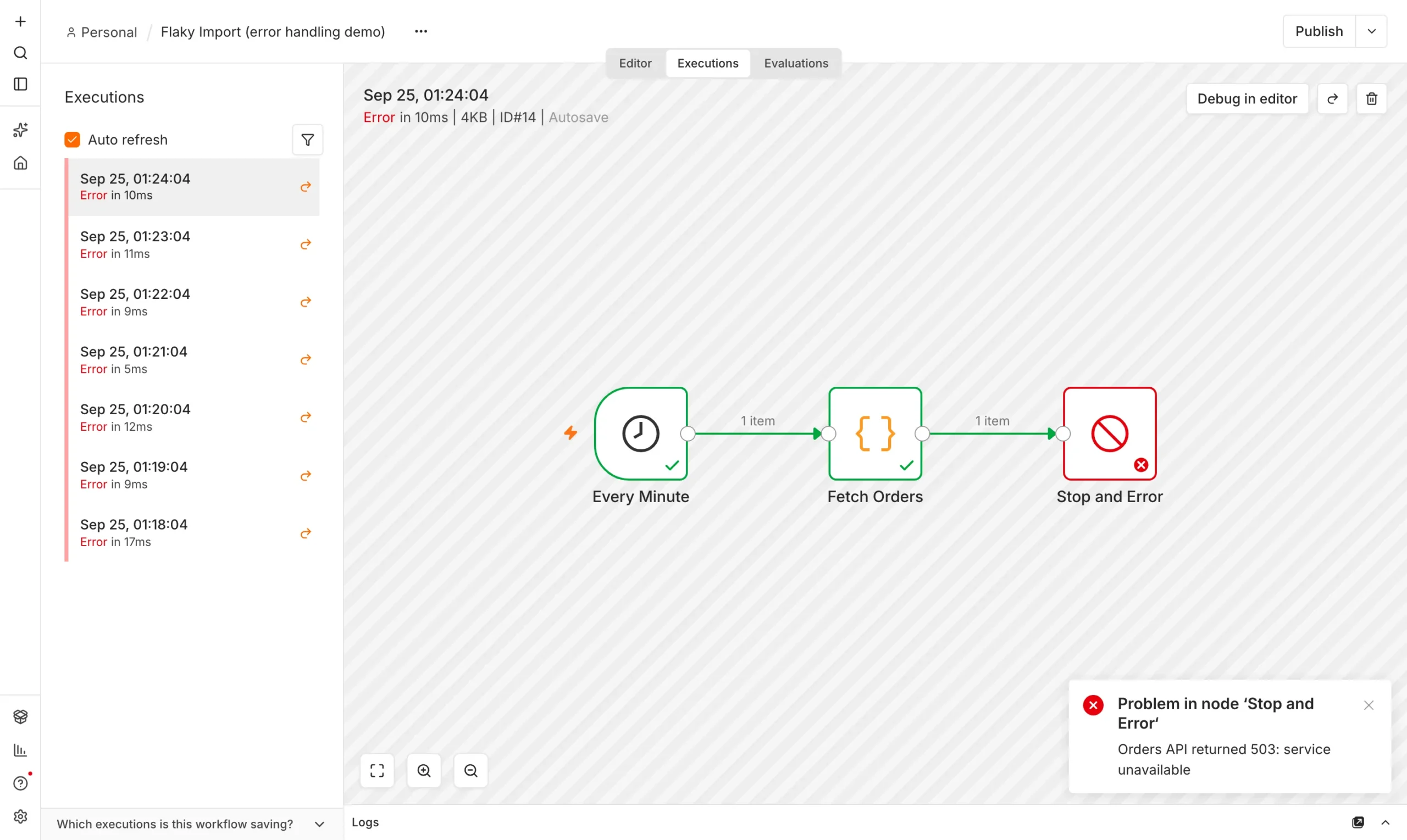
Our first attempt showed nothing. The n8n log said the error workflow was not active and could not be executed. Once we published the handler, each failure triggered it within the same minute.
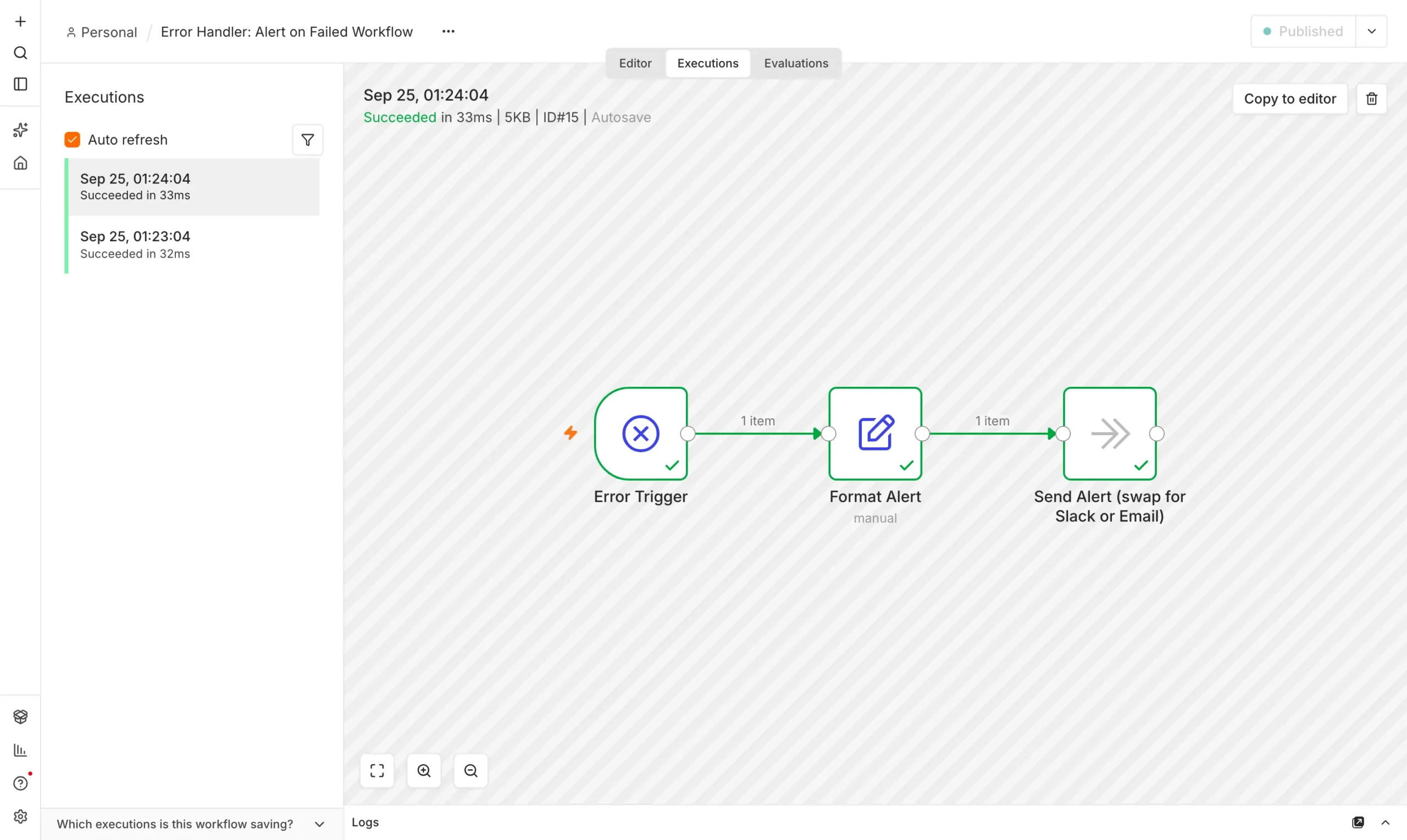
The handler’s execution list shows a successful run for every failure. The alert it produced read: Workflow Flaky Import (error handling demo) failed at node Stop and Error: Orders API returned 503: service unavailable.
More n8n error handling tips
- Use one handler for everything. A single error workflow can serve many workflows.
- Fail on purpose. The Stop and Error node lets you raise your own errors when data looks wrong.
- Include a link. The error data holds the execution URL, so your alert can point straight to the failed run.
- Learn the rest. The official error handling documentation covers retries and continue-on-fail settings.
Pair this with our guide to automating repetitive tasks so the workflows you build keep running quietly.
What a good alert contains
An alert you cannot act on is just noise. Include enough detail to fix the problem from your phone.
- The workflow name. You may run dozens, so name it clearly.
- The failing node. It points straight at the step to check.
- The error message. Copy it as written so you can search for it.
- The execution link. One tap opens the failed run with its data.
Send alerts to a channel people actually read, and avoid alerting on every minor retry. Too many alerts teach everyone to ignore them.
When you finish testing, unpublish the demo workflow. Ours failed every minute by design, and you do not want that running on your real n8n.
Finally, test the whole chain before you trust it. Trigger a real failure, confirm the alert arrives where you expect and check that the message is clear enough to act on.
Frequently asked questions
Why is my n8n error workflow not running?
Check that the error workflow is published and that the failure came from an automatic run. Manual test runs do not trigger it.
What data does the Error Trigger receive?
It receives the workflow name, the execution ID and URL, the last node executed and the error message.
Can one error workflow handle many workflows?
Yes. Select the same error workflow in each workflow’s settings.