Automated Data Extraction: Pull Invoice Fields from PDFs with n8n
Automated data extraction means using software to pull specific fields, such as an invoice number, date and total, out of documents and turn them into structured data, so nobody has to retype them. The method you need depends on the document. For clean, text-based PDFs, simple rules are enough. For scans and messy layouts you need OCR or AI. This guide compares the options, then builds a free n8n workflow that extracts invoice fields from PDFs and sends anything it cannot read to a person. We tested it on three PDFs plus a scan.
Key takeaways
- There are four ways to extract data: fixed rules, templates, OCR and AI. Match the method to the document.
- PDFs that contain real text can be read with free rules. Scanned PDFs are pictures and need OCR first.
- Always validate: check that required fields exist and send failures to a person instead of guessing.
- Our workflow extracted two differently laid-out invoices correctly, flagged an incomplete one and identified a scan as needing OCR.
Four ways to extract data automatically
| Method | How it works | Best for | Weakness |
|---|---|---|---|
| Rules (patterns) | Search the text for labels such as “Invoice No” and capture what follows | Text-based PDFs from a few known senders | Breaks when the wording or layout changes |
| Templates | Map fixed positions on a page to fields | Forms and documents with one exact layout | Needs one template per layout |
| OCR | Convert an image or scan into text first | Scanned or photographed documents | Errors on poor scans; still needs rules afterwards |
| AI / machine learning | A model reads the document and finds fields by meaning | Many different layouts, unstructured text | Cost, privacy and the need to check results |
Most real systems combine them: OCR turns a scan into text, then rules or AI find the fields, then validation catches mistakes. The workflow below covers the rules-plus-validation part, which handles a surprising share of business documents at no cost.
Build a PDF invoice extractor in n8n
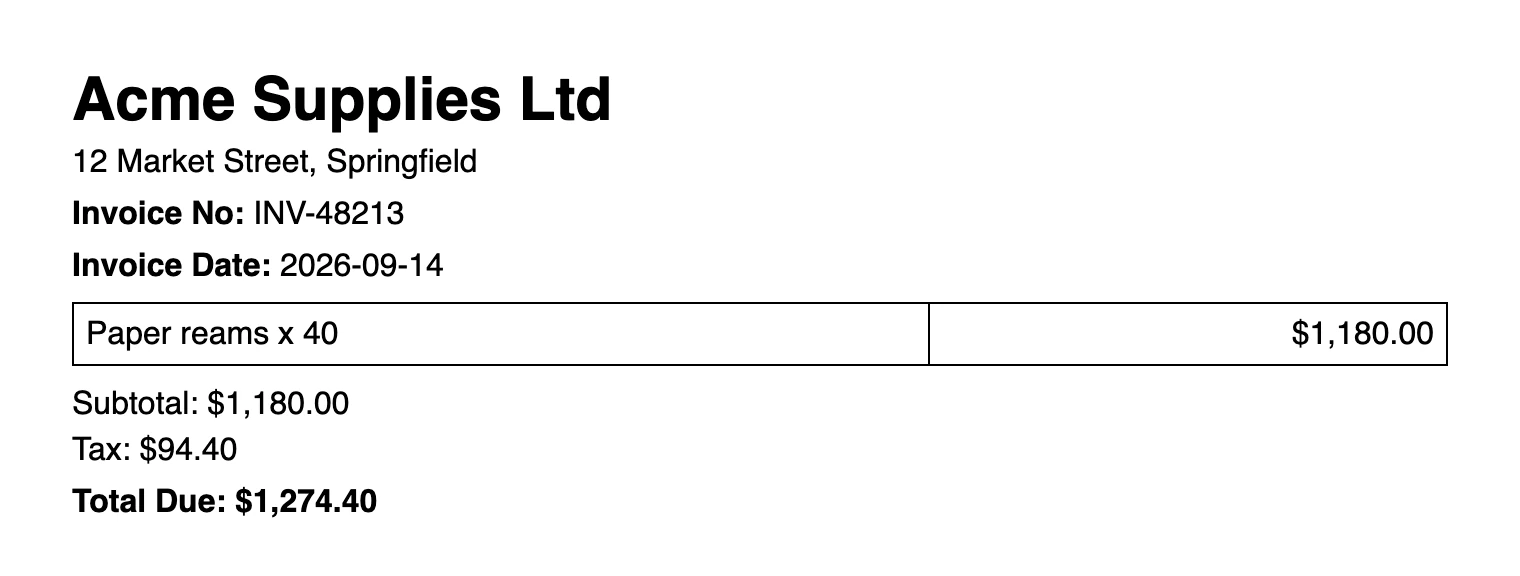
You need n8n and an SMTP account (we used Mailpit as a test inbox). Download the workflow (JSON) and import it. We tested with three PDFs generated for the purpose, like this one:
What does it cost to run? The software is free: self-hosted n8n may be used at no charge for internal business and personal use under its Sustainable Use License. You pay for somewhere to keep it running and for an SMTP account to send email (many providers have a free tier). This version needs no paid OCR or AI service.
Step 1: Receive the document
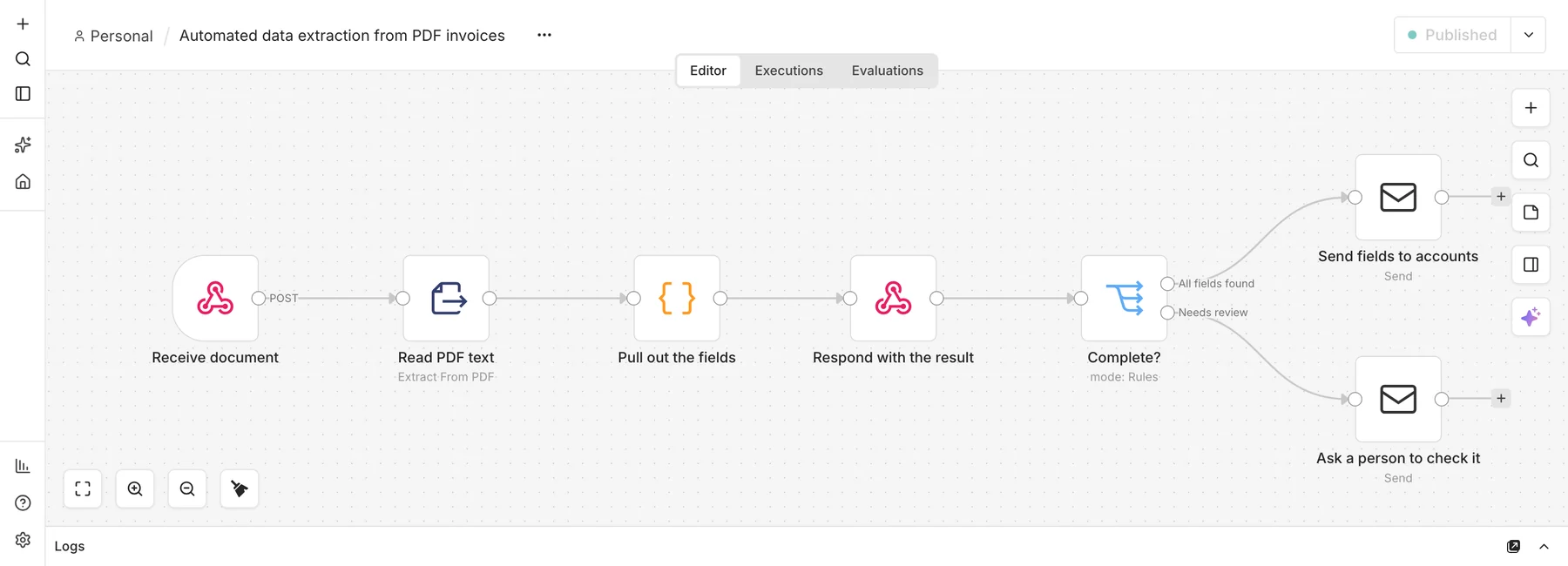
Add a Webhook node (POST, path extract-invoice, respond using the Respond to Webhook node). It accepts a file upload in a form field called file. Your email tool, form or storage service can post documents to it.
Step 2: Read the PDF text
Add an Extract From File node, choose the PDF operation and set the binary property to file. It returns the document’s text. If a PDF is only a picture, the text comes back empty, and the workflow uses that to detect scans.
Step 3: Pull out the fields
Add a Code node that searches the text with patterns for the invoice number, date and total, and lists whatever it could not find:
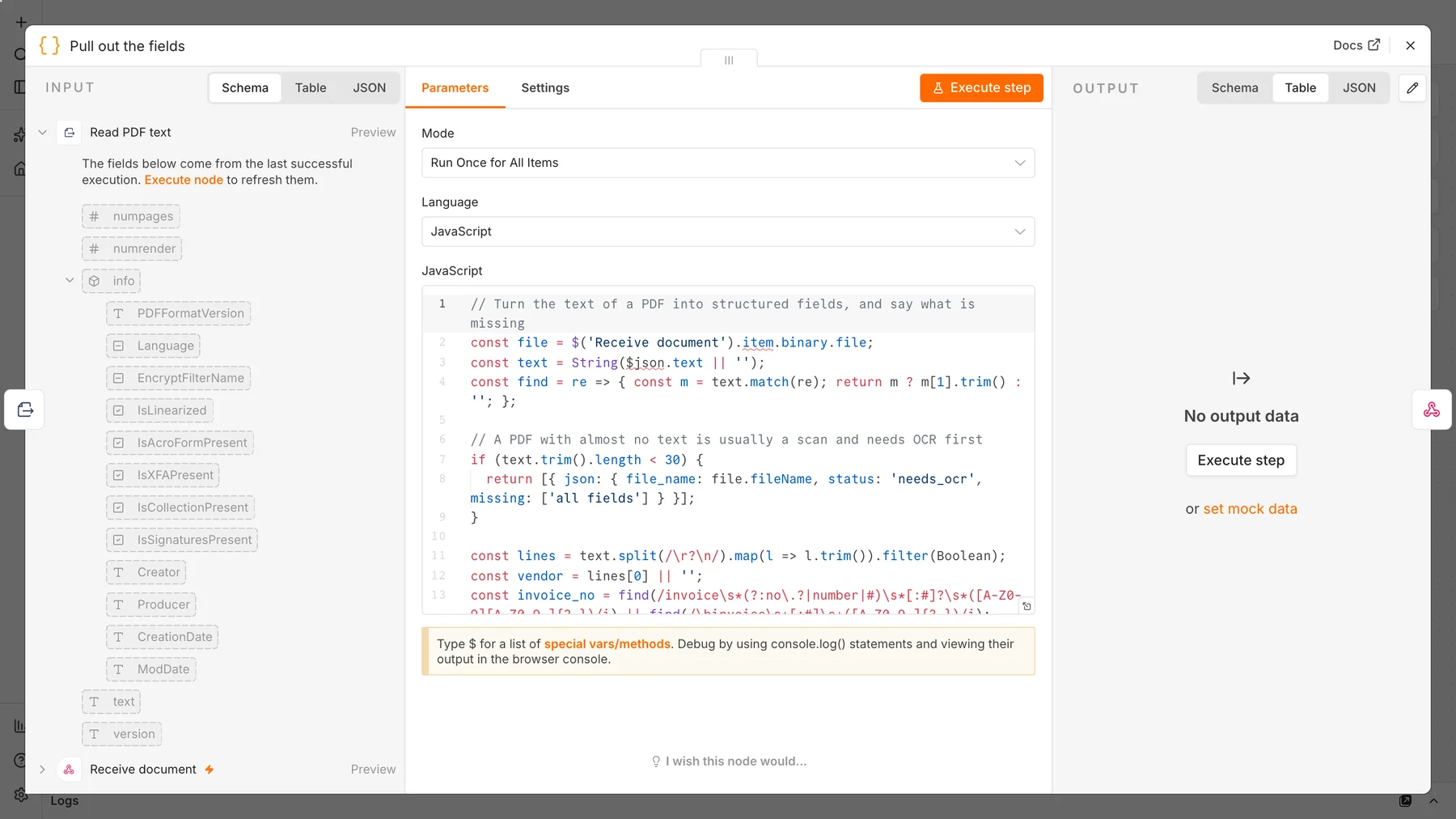
const invoice_no = find(/invoice\s*(?:no\.?|number|#)\s*[:#]?\s*([A-Z0-9][A-Z0-9-]{2,})/i);
const totals = [...text.matchAll(
  /\b(?:total\s*due|amount\s*due|balance\s*due|grand\s*total|total)\s*[:]?\s*(?:USD|EUR|GBP)?\s*[$€£]?\s*([\d,]+\.\d{2})/gi
)].map(m => m[1]);
const total = totals.length ? Number(totals[totals.length - 1].replace(/,/g, '')) : null;

if (text.trim().length < 30) return [{ json: { status: 'needs_ocr', missing: ['all fields'] } }];
Three details make this reliable. The pattern starts with \b, so “Subtotal” is not mistaken for a total. The workflow takes the last match, because the grand total comes after subtotals and taxes. And the date is normalized to YYYY-MM-DD whether the invoice says “2026-09-14” or “September 3, 2026”.
Step 4: Respond and route
Respond to the sender with the extracted JSON, then add a Switch node with two outputs: All fields found goes to an email for accounts, and the fallback Needs review goes to a person with the fields it did find and a list of what is missing.
Step 5: Test with real files
curl -X POST http://localhost:5678/webhook/extract-invoice -F "file=@invoice-acme.pdf"

{"file_name":"invoice-acme.pdf","vendor":"Acme Supplies Ltd","invoice_no":"INV-48213",
"date":"2026-09-14","total":1274.4,"currency":"USD","missing":[],"status":"extracted"}| Document | Result |
|---|---|
| Acme invoice (“Invoice No”, “Total Due”) | Extracted: INV-48213, 2026-09-14, USD 1,274.40 |
| Northwind invoice (“INVOICE #”, “Amount due”, written date) | Extracted: NW-2091, 2026-09-03, USD 3,560.00 |
| Harbor Print (no number, date or total) | Needs review: invoice number, date and total missing |
| Scanned invoice (image only) | Needs OCR: no text found |

Pitfalls to expect
- Layout drift. A new supplier with different labels will fail. That is fine, as long as failures go to a person, and you add the new wording afterwards.
- Scans. A scan is a picture. Add an OCR step, from an OCR service or an AI vision model, before this workflow, and test it before trusting it.
- Losing the file after extraction. The Extract From File node returns text, so refer back to the original with
$('Receive document').item.binary.filewhen you need the file name or want to save it. - Guessing. Never fill a missing field with a default. A wrong total is worse than an empty one.
Measure accuracy before you trust it
Collect 20 to 50 real documents from your actual senders, run them through, and compare each field with the truth. Track accuracy per field, not just overall, because a workflow that gets dates right and totals wrong is not 90% correct in any useful sense. Re-test whenever a supplier changes its format, and keep a person reviewing exceptions.
Make it production-ready
- Send the fields somewhere useful: a spreadsheet, a database or your accounting system, rather than only email.
- Feed an approval flow. Extracted invoices can go straight into our invoice approval workflow.
- Prevent duplicates by checking the invoice number and vendor before saving.
- Secure the webhook with a secret header and limit file size and type.
- Protect the documents. Invoices and contracts contain personal and financial data, so control access and avoid sending them to services you have not vetted.
Frequently asked questions
What is automated data extraction?
It is the use of software to find and capture specific information from documents, emails or web pages and convert it into structured data such as a table row or JSON, without manual typing.
Can n8n extract data from PDFs?
Yes. The Extract From File node reads text from PDFs, and a Code node or an AI step can then find the fields. Scanned PDFs need OCR first.
What is the difference between OCR and data extraction?
OCR converts an image into text. Data extraction finds the specific fields, such as a total, inside that text. Scanned documents usually need both.
How accurate is automated data extraction?
It depends on the documents and the method. Clean, consistent PDFs can be near-perfect with rules, while scans and varied layouts need testing. Measure accuracy on your own documents and keep a human review step.
Sources and further reading
- n8n Extract From File node.
- n8n Webhook node.
- n8n Code node.
- Mailpit, the test inbox used for the screenshots.