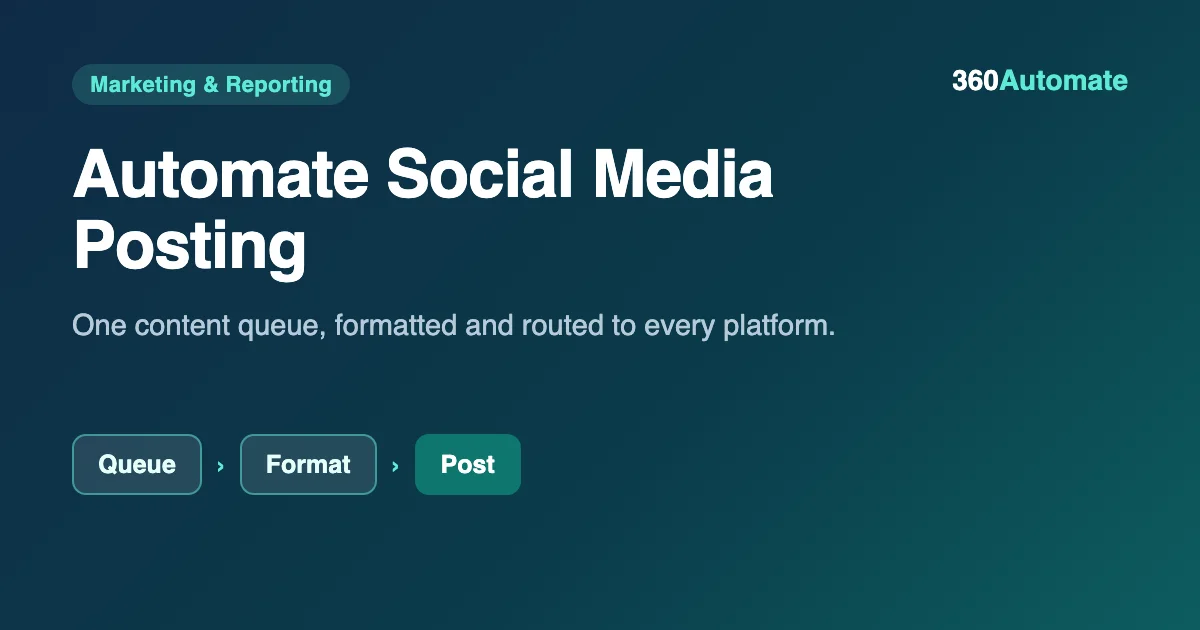
Automate Social Media Posting: One Workflow, Every Platform
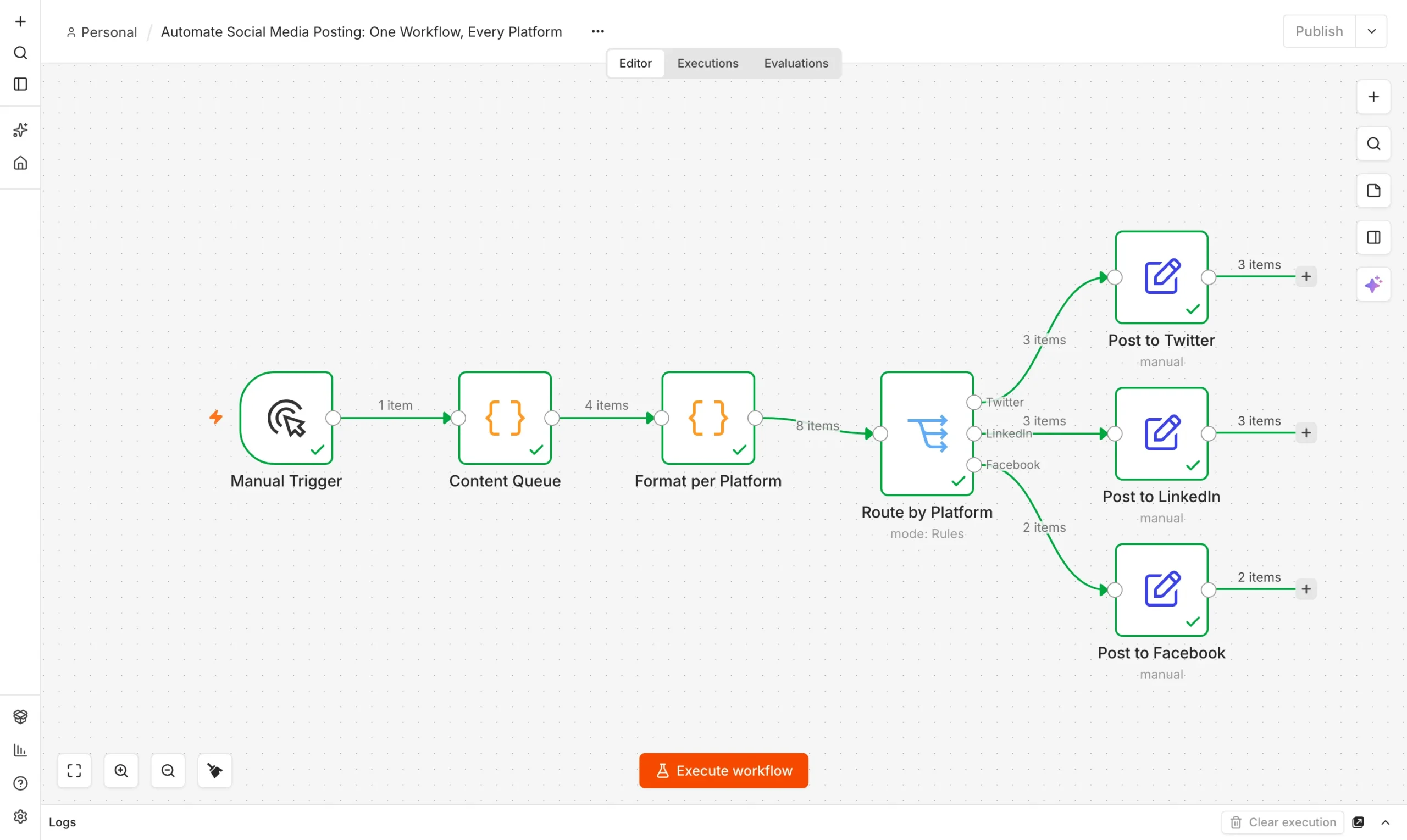
You can automate social media posting in n8n from one content queue: write each post once, and let the workflow reformat it per platform and check it fits each one’s character limit before it goes out. We built it on a local n8n install and ran it on four queued posts, expanding into eight correctly formatted, correctly routed platform posts.
- Four queued posts expanded into 8 platform-specific posts across Twitter, LinkedIn and Facebook.
- Every post stayed within its platform’s character limit, including Twitter’s tight 280-character cap.
- One content queue means one place to write and schedule, instead of three.
- Swap the sample queue for a real sheet and add platform posting nodes to go live.
How to automate social media posting
Posting the same update to three platforms by hand means three sets of copy-paste, three character-count checks, and three places to make the same typo. A posting workflow fixes that by keeping one content queue and letting the workflow reformat and route each post per platform.
| Platform | Format rule |
|---|---|
| Plain text only, capped at 280 characters | |
| Title plus body, much higher limit | |
| Title plus body, effectively no practical limit |
Here is exactly how to automate social media posting from a single queue in n8n.
Build the social posting workflow in n8n
Start with n8n running. Our free n8n setup guide covers installation. The workflow has three steps.
Content queue
A Code node holds four scheduled posts, each tagged with its target platforms.
Queue
Format per platform
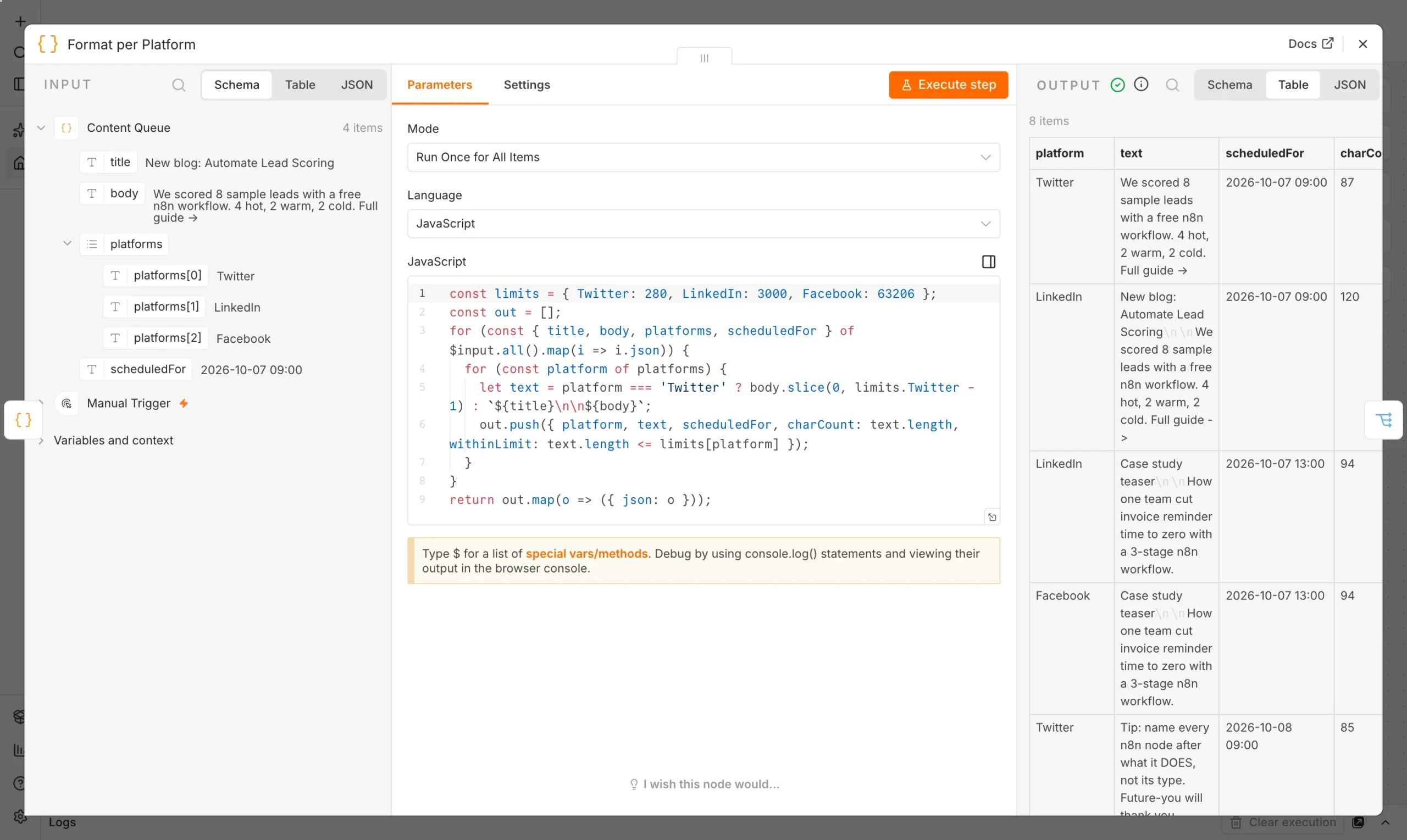
A Code node expands each post into one row per platform, trimmed to that platform’s limit.
Format
Route by platform
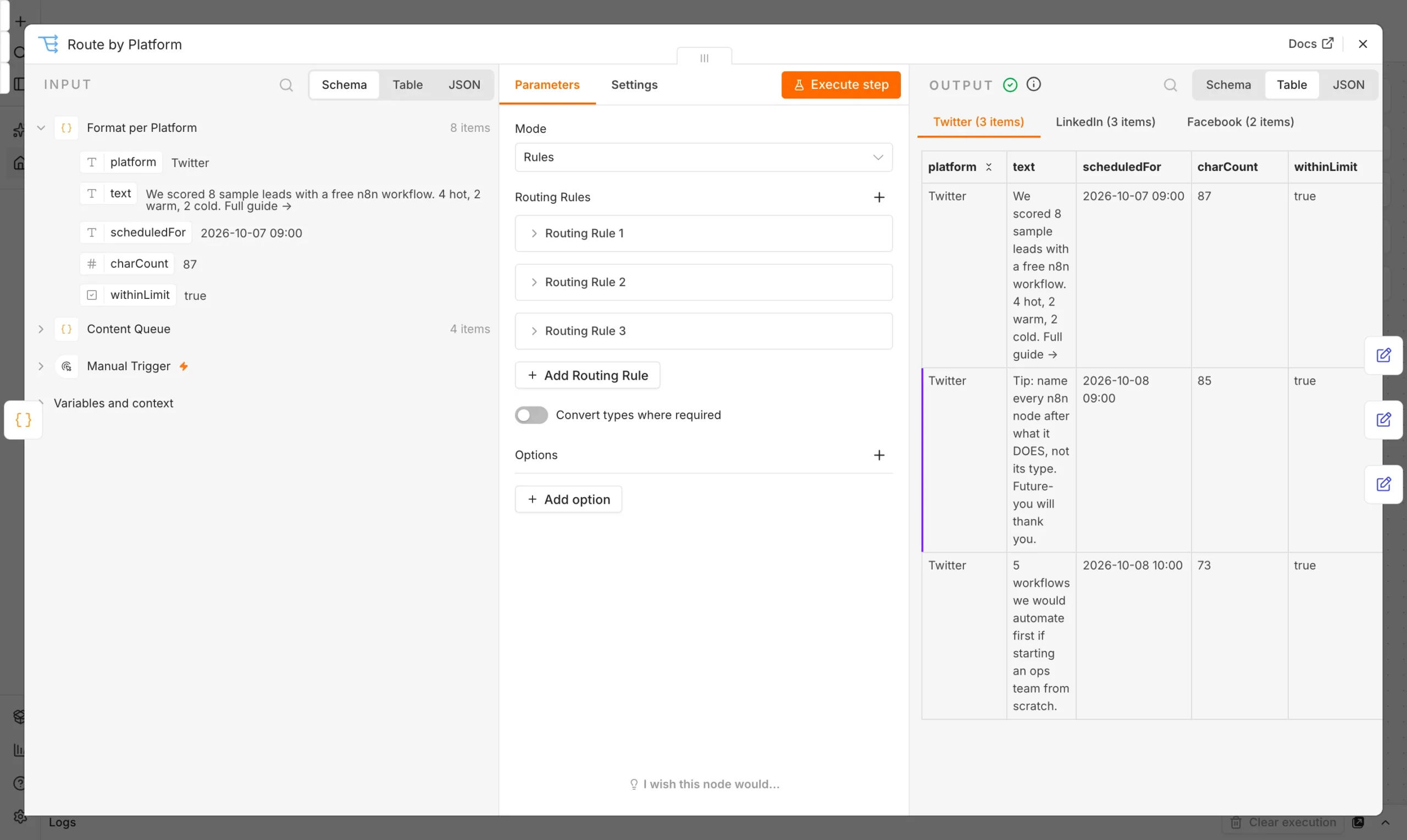
A Switch node sends each formatted post to its platform’s output.
Route
The formatting step is where most posting mistakes happen in practice: pasting the full title and body into a tweet that is already near the limit. The Code node checks the character count for every platform and trims Twitter posts specifically, since it has the tightest limit by far.
const limits = { Twitter: 280, LinkedIn: 3000, Facebook: 63206 };
for (const platform of platforms) {
  let text = platform === 'Twitter' ? body.slice(0, limits.Twitter - 1) : `${title}\n\n${body}`;
  out.push({ platform, text, scheduledFor, charCount: text.length, withinLimit: text.length <= limits[platform] });
}
A Switch node reads the platform field and sends each row to its own output, ready for a platform-specific posting node or API call.
What happened when we ran it
We ran the workflow on four queued posts targeting a mix of platforms. Every node finished with a green check, and the four posts expanded into eight platform-specific rows.
| Platform | Posts routed | All within character limit? |
|---|---|---|
| 3 | Yes | |
| 3 | Yes | |
| 2 | Yes |
All eight rows stayed within their platform’s character limit, including the longer LinkedIn and Facebook versions that combine the title and body. That check matters more than it sounds: a queue with longer post bodies would have silently produced a truncated, cut-off tweet without it.
Connect it to real platforms
- Swap the sample queue for a Google Sheet or Airtable base your team actually edits.
- Add the posting nodes. n8n has built-in nodes for Twitter/X and other platforms; for others, an HTTP Request node to the platform’s API works.
- Schedule it. Replace the Manual Trigger with a Schedule Trigger that checks for posts due in the next hour.
- Log what actually posted so a failed post on one platform does not go unnoticed while the others succeed.
If your posts promote new content, pair this with our automated SEO reports workflow to see which published pages are worth promoting again.
Why one queue beats writing for each platform separately
Writing a post three times – once per platform, each time adjusting for length and tone – is where most of the actual time goes in social media management, far more than the posting itself. A single content queue forces you to write the core message once, and pushes the platform-specific adjustments into code that runs the same way every time. That consistency matters more than it sounds: a workflow that trims to 280 characters the same way every single time will never accidentally publish a tweet that cuts off mid-sentence, which is a mistake that happens regularly when someone manually trims copy under time pressure.
Versus a dedicated social scheduling tool
Buffer, Hootsuite and similar tools do this well and are worth paying for if your team needs a shared calendar view, approval workflows, or detailed analytics. What they do not offer is the ability to change the formatting logic itself – if you want Twitter posts to include a specific hashtag pattern, or LinkedIn posts to always append a link in a particular format, you are working within whatever options the tool exposes. Building it in n8n means the formatting rules are plain code you fully control, at the cost of not having a polished calendar UI out of the box.
What this actually saves
Posting four updates across three platforms by hand, with format-checking and copy-pasting, realistically takes 15-20 minutes once you account for switching between apps and double-checking character counts. A week of that is an hour and a half spent on formatting rather than writing. The workflow does not remove the need to write good copy – that is still the valuable part a human should do – but it removes the repetitive, error-prone formatting and routing work that follows, which is exactly the kind of task automation is good at and people are bad at doing consistently.
Checklist before you connect real accounts
- Confirm each platform’s API credentials and app permissions are set up and tested with a single manual post before relying on the automated schedule.
- Review a day’s worth of formatted output manually before the first live run, checking that trimmed Twitter copy still reads naturally and is not cut off mid-word.
- Decide on a posting cadence per platform rather than posting everything simultaneously everywhere – what counts as a reasonable frequency on LinkedIn can look like spam on Twitter.
- Add a simple approval step (a Slack message asking for a thumbs-up) for the first few weeks until you trust the formatting logic completely.
Common mistakes when automating social posting
- Writing one post and letting every platform’s version read identically. LinkedIn and Facebook audiences tolerate (and often expect) more context than a tweet – resist the urge to just post the same trimmed text everywhere.
- Not checking the character limit before sending. Skipping the withinLimit check means a post that is slightly too long gets silently rejected or cut off by the platform instead of caught in your own workflow.
- Posting the same content at the same time on every platform. Audiences are active at different times on different platforms – a single scheduled time ignores that, even though this workflow’s queue structure makes per-platform timing straightforward to add.
- Forgetting to log what actually posted. If one platform’s API call fails silently, you want a record showing which posts went out and which did not, rather than finding out from a follower.
More on how to automate social media posting without a paid scheduling tool.
Frequently asked questions
Can n8n actually post to Twitter, LinkedIn and Facebook?
Yes, through built-in nodes for some platforms and HTTP Request calls to others’ APIs. This workflow handles the formatting and routing; the final send is one more node per platform.
How does it handle Twitter’s character limit?
It trims the post body to fit under 280 characters and flags whether each formatted post is within its platform’s limit before sending.
Do I need a paid scheduling tool?
No. The queue, formatting and routing all run on free, built-in n8n nodes.
Can I add more platforms?
Yes – add another entry to the limits object and another output on the Switch node for each new platform you post to.
What happens if a post is still too long after trimming?
The withinLimit flag catches this before posting, so you can review and shorten the original copy rather than publishing a broken post.
Can I schedule posts for different times per platform?
Yes – add a per-platform offset to the scheduledFor field in the Format per Platform node so each platform’s post goes out at its own optimal time.
Does this handle images or just text?
This build focuses on text formatting and routing. Adding images means attaching a media URL to each queue item and passing it through to the platform-specific posting node.