Automate Document Classification: Sort Files by What’s Inside Them
You can automate document classification in n8n with plain keyword rules, no machine learning required. The workflow reads each file’s text, matches it against five document types, and routes it to the right folder. We built it on a local n8n install and ran it on six sample files – all six were classified correctly.
- All 6 sample files were classified correctly: invoice, two contracts, expense report, resume and receipt.
- Classification reads the document’s actual text, not its filename, so poorly named scans still sort correctly.
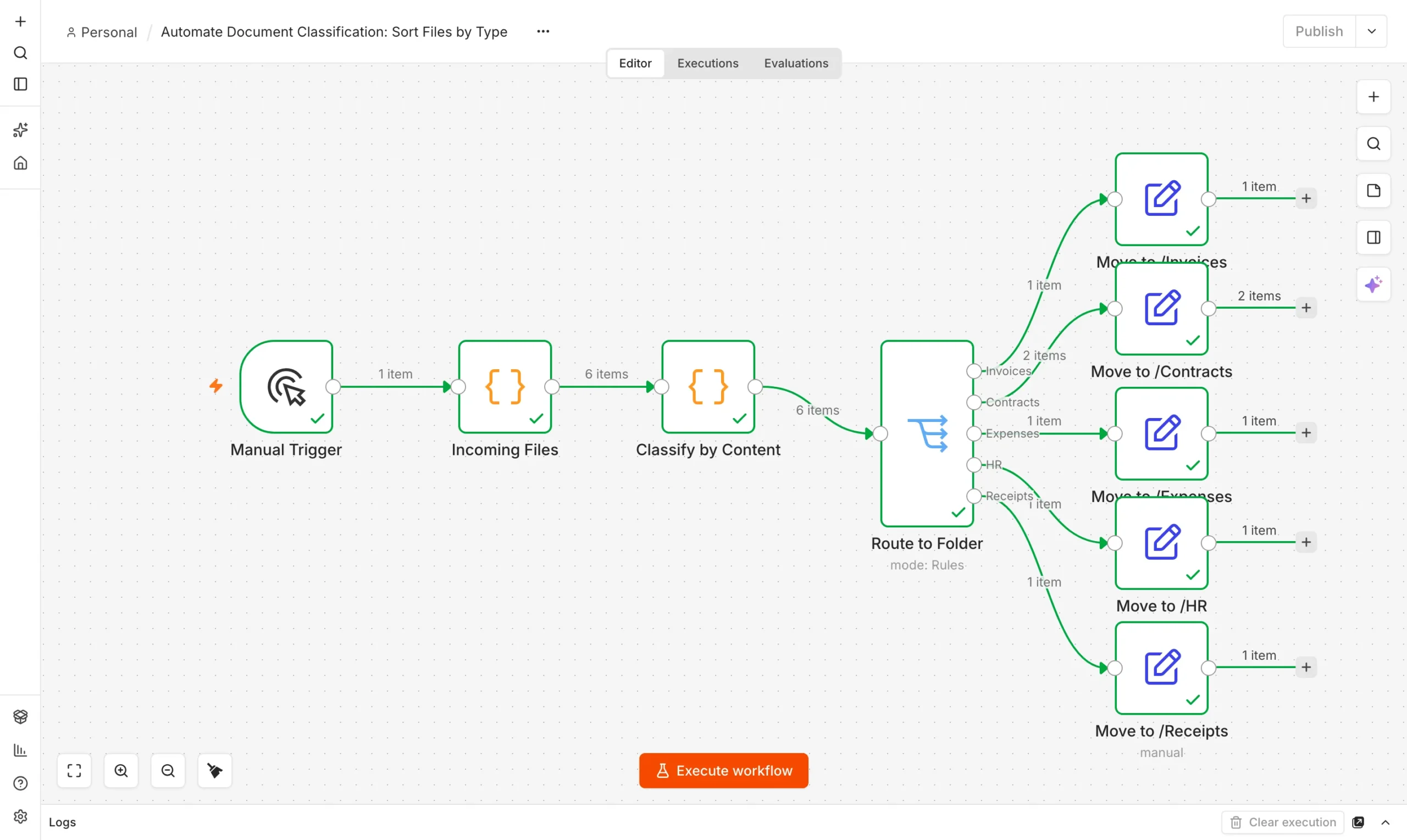
- A Switch node routes each file to one of five folders based on its type.
- Files that match no rule are marked Unclassified instead of filed incorrectly.
How to automate document classification
Most inboxes and upload folders receive the same handful of document types over and over: invoices, contracts, receipts, resumes, expense reports. You do not need machine learning to sort them – the documents usually say what they are, right in the text. A keyword rule per category gets you most of the way there for free.
| Document type | What the workflow looks for |
|---|---|
| Invoice | “invoice”, “amount due”, “payment terms” |
| Contract | “agreement”, “non-disclosure”, “governing law” |
| Expense report | “expense report”, “reimbursable”, “receipts attached” |
| Resume | “resume”, “years experience”, “skills:” |
| Receipt | “receipt #”, “total: $”, “thank you for your purchase” |
This rules-first approach is how most small teams automate document classification without buying a dedicated tool.
Build the document classifier in n8n
You need n8n running locally. See how to use n8n for free if you have not set it up. The build has three parts.
Incoming files
A Code node returns six sample files with their extracted text.
Input
Classify by Content
A Code node matches each file’s text against five category rules.
Classify
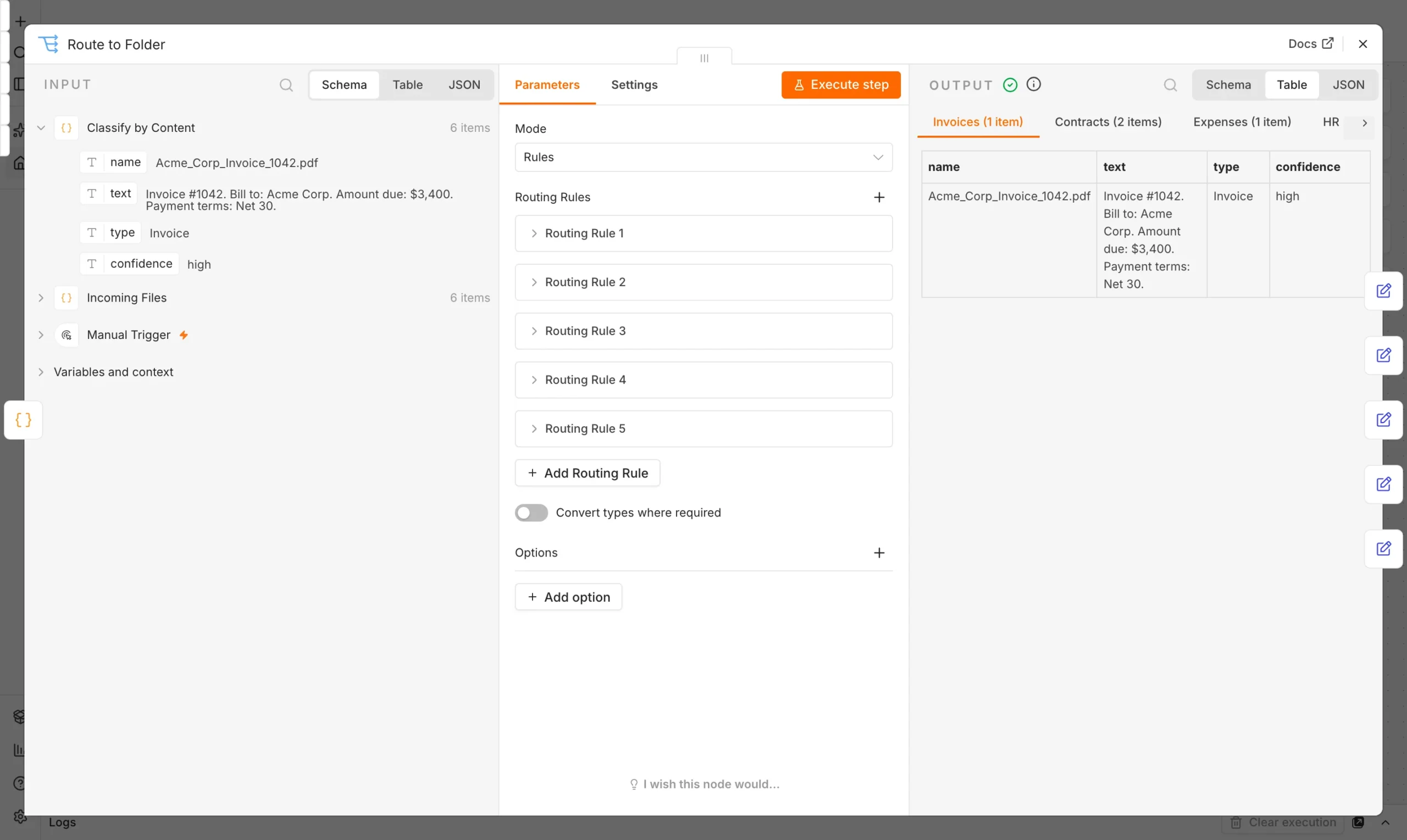
Route to Folder
A Switch node sends each file to its destination folder.
Route
The classifier checks each file’s text against an ordered list of rules and takes the first match. Anything that matches nothing gets marked Unclassified rather than forced into the wrong category.
const rules = [
  { type: 'Invoice', re: /invoice|amount due|payment terms/i },
  { type: 'Contract', re: /agreement|non-disclosure|governing law/i },
  { type: 'Expense Report', re: /expense report|reimbursable|receipts attached/i },
  { type: 'Resume', re: /resume|years experience|skills:/i },
  { type: 'Receipt', re: /receipt #|total: \$|thank you for your purchase/i },
];
const match = rules.find(r => r.re.test(file.text));
return { ...file, type: match ? match.type : 'Unclassified' };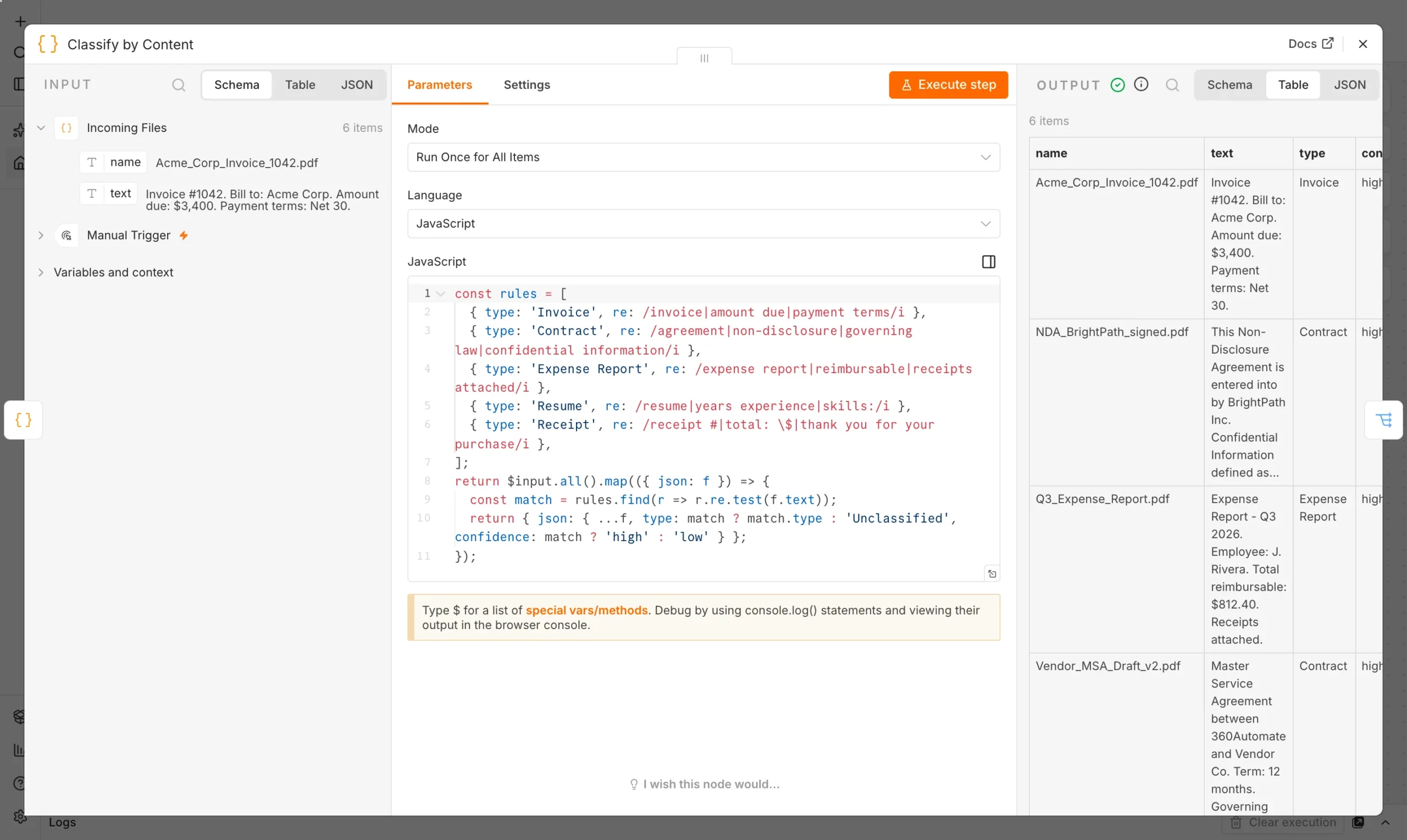
A Switch node then reads the type field and routes each file to one of five outputs: Invoices, Contracts, Expenses, HR or Receipts.
What happened when we ran it
We ran the workflow on six sample files on our local n8n install. Every node finished with a green check, and all six were classified correctly on the first rule they matched.
| File | Classified as | Routed to |
|---|---|---|
| Acme_Corp_Invoice_1042.pdf | Invoice | /Invoices |
| NDA_BrightPath_signed.pdf | Contract | /Contracts |
| Q3_Expense_Report.pdf | Expense Report | /Expenses |
| Vendor_MSA_Draft_v2.pdf | Contract | /Contracts |
| Resume_C_Nguyen.pdf | Resume | /HR |
| Scan_20261004_0091.pdf | Receipt | /Receipts |
Two different contract-type documents (an NDA and a Master Service Agreement) both landed correctly in Contracts, because the rule matches on contract language in general rather than a specific document title. That is the point of content-based classification over filename-based sorting: “Scan_20261004_0091.pdf” tells you nothing by its name, but its text was unambiguously a receipt.
Where keyword rules fall short
- Scanned images need OCR first. This workflow classifies extracted text; a photographed receipt needs an OCR step before it reaches this node.
- Ambiguous documents. A contract that also discusses payment terms could match two rules; rule order decides the winner, so put your most specific rules first.
- New document types. Add a new rule with a few real examples rather than guessing keywords – test it against documents you actually receive.
For scanned PDFs or image-based documents, pair this with our automated data extraction workflow, which covers pulling structured fields out of PDF invoices.
Why content-based beats filename-based sorting
The obvious shortcut is sorting by filename pattern: anything with “invoice” in the name goes to Invoices. That works until it does not – a scanned document named “Scan_20261004_0091.pdf” by the scanner’s own naming convention, an email attachment saved as “document.pdf,” or a file renamed by someone who did not follow the convention. Content-based classification is immune to all of that, because it reads what the document actually says rather than trusting what it is called. The small cost is needing extracted text rather than just a filename, which for scanned documents means an OCR step first.
Rules versus a trained classification model
For a fixed, well-known set of document types – the five categories most small businesses actually receive – keyword rules are the right tool: free, instant to set up, and each rule is something a non-technical person can read and understand. A trained machine learning classifier earns its complexity when you have dozens of document types with overlapping, ambiguous language, or when you are processing high volumes where a few percentage points of accuracy matter financially. Most teams never reach that point; if you do, the rules-based version here still has a use as the fast, free first pass that only escalates ambiguous documents to a model.
What this actually saves
If a person spends even two minutes per document deciding where it goes and moving it, 50 documents a week is over an hour and a half of pure filing. The automated version does that work in seconds and, more importantly, never gets inconsistent between a Monday morning and a Friday afternoon – the classification rule applies exactly the same way regardless of who would otherwise have done the sorting or how tired they were when they did it. That consistency compounds: a document filed correctly today is a document that is findable in six months without anyone remembering where they put it.
Checklist before you turn this on for real files
- Pull 20-30 real recent documents across every type you expect and test the classifier against all of them before trusting it on new, unseen files.
- Decide where Unclassified files land – a visible review folder, not a dead end – so nothing silently disappears.
- If any source documents are scanned images, confirm your OCR step produces clean enough text for the keyword rules to match reliably; test this specifically, since OCR quality varies a lot by scanner and document condition.
- Set a recurring reminder to review the Unclassified folder weekly for the first month, since that is where you will spot patterns worth turning into new rules.
Common mistakes when automating document classification
- Writing rules from memory instead of real documents. Pull a sample of actual files you receive before writing keyword patterns – guessed keywords miss the specific phrasing your real vendors and partners use.
- Ignoring rule order. Because the first matching rule wins, a general rule placed before a specific one can quietly swallow documents meant for a more precise category.
- Skipping the Unclassified bucket. Forcing every file into one of five categories, even a bad fit, hides genuinely new document types that deserve their own rule.
- Not testing against edge cases. A contract that also mentions an invoice number, or a receipt with legal boilerplate, is exactly the kind of file worth deliberately testing before relying on the classifier.
A few more questions people ask before they automate document classification for their own files.
Frequently asked questions
Do I need AI to classify documents automatically?
Not for common, clearly worded document types. Keyword rules on the extracted text handle invoices, contracts, receipts and resumes well, and cost nothing to run.
What happens to a document that matches no rule?
It is marked Unclassified rather than forced into the wrong folder, so you can review it and either file it manually or add a new rule.
Can this read scanned paper documents?
Only after OCR extracts the text. The classification step itself works on text, not images.
How do I add a new document type?
Add one more rule object to the list with a regex matching language specific to that document type, based on a few real examples rather than a guess.
What if a document matches two rules?
The first matching rule in the list wins, so order your most specific rules before more general ones to avoid misclassification.
Can this move the actual file, not just label it?
Yes – once routed by the Switch node, each output can trigger a real file-move action (local folder, Google Drive, Dropbox) rather than just recording the category.
How accurate was it in your test?
All six sample documents in our test run were classified correctly, including two different contract types that both matched the same contract rule for different reasons.