Automated Lead Follow-Up System: Build One in n8n (Free Workflow)
An automated lead follow-up system is a workflow that sends each new lead a timed series of messages and stops the moment they reply, book or unsubscribe. Most articles on this topic describe paid software. This guide shows how to build a four-touch email version yourself with n8n, using a free workflow we tested with two real-behavior test leads: one who ignored the emails and one who replied.
Key takeaways
- Speed and persistence both matter. A study in Harvard Business Review found that companies that contacted online leads within an hour were nearly seven times as likely to reach a decision-maker as those that waited one hour longer.
- Four touches over about a week is a sensible starting sequence: confirmation, helpful tip, gentle nudge, last note.
- The most important rule is to stop automatically when a lead replies, books or unsubscribes.
- Every follow-up email needs your postal address and an opt-out line. The Federal Trade Commission lists penalties of up to $53,088 per violating email.
- The workflow below is free to import, and you can swap its storage for Google Sheets, Airtable or your CRM.
What is an automated lead follow-up system?
It is a set of rules that decides who gets which message and when. A new lead arrives from a form, the system records them, sends an instant confirmation and then sends follow-ups on a schedule until the lead responds or the sequence ends. It saves the manual work of remembering who to chase, and it makes sure every lead gets the same reliable treatment, even at 2 a.m.
It does not replace conversation. The goal is to earn a reply, then hand the lead to a person. That is why the stop rule matters more than any email template.
Design the sequence before you build
Decide four things first: how many touches, how far apart, what each one says, and what ends the sequence. Here is the sequence we build:
Day 0: Confirmation
Instant reply with a booking link
Day 2: Helpful tip
One useful idea, no pitch
Day 4: Gentle nudge
Short check-in with a calendar link
Day 7: Last note
“Should I close your file?”
| Touch | When | Goal | Message |
|---|---|---|---|
| 0. Confirmation | Instantly | Show you received it | Thanks, here is what happens next, plus a booking link |
| 1. Helpful tip | Day 2 | Add value | One useful idea about their topic, no pitch |
| 2. Gentle nudge | Day 4 | Prompt a reply | Short check-in with a calendar link |
| 3. Last note | Day 7 | Close the loop | Polite “should I close your file?” |
- Stop on any reply, booking or unsubscribe, immediately.
- Cap the sequence at four messages. Longer sequences irritate people and hurt sender reputation.
- Give value before asking. Touch 1 should help even if they never buy.
- Include your address and an opt-out line in every email (see compliance below).
Build it in n8n, step by step
You need n8n (free self-hosted or Cloud) and an SMTP account. We tested on n8n 2.39 with Mailpit as a test inbox, so no real emails were sent. Download the workflow (JSON) and import it with “Import from file”, then select your own SMTP credential on each email node.
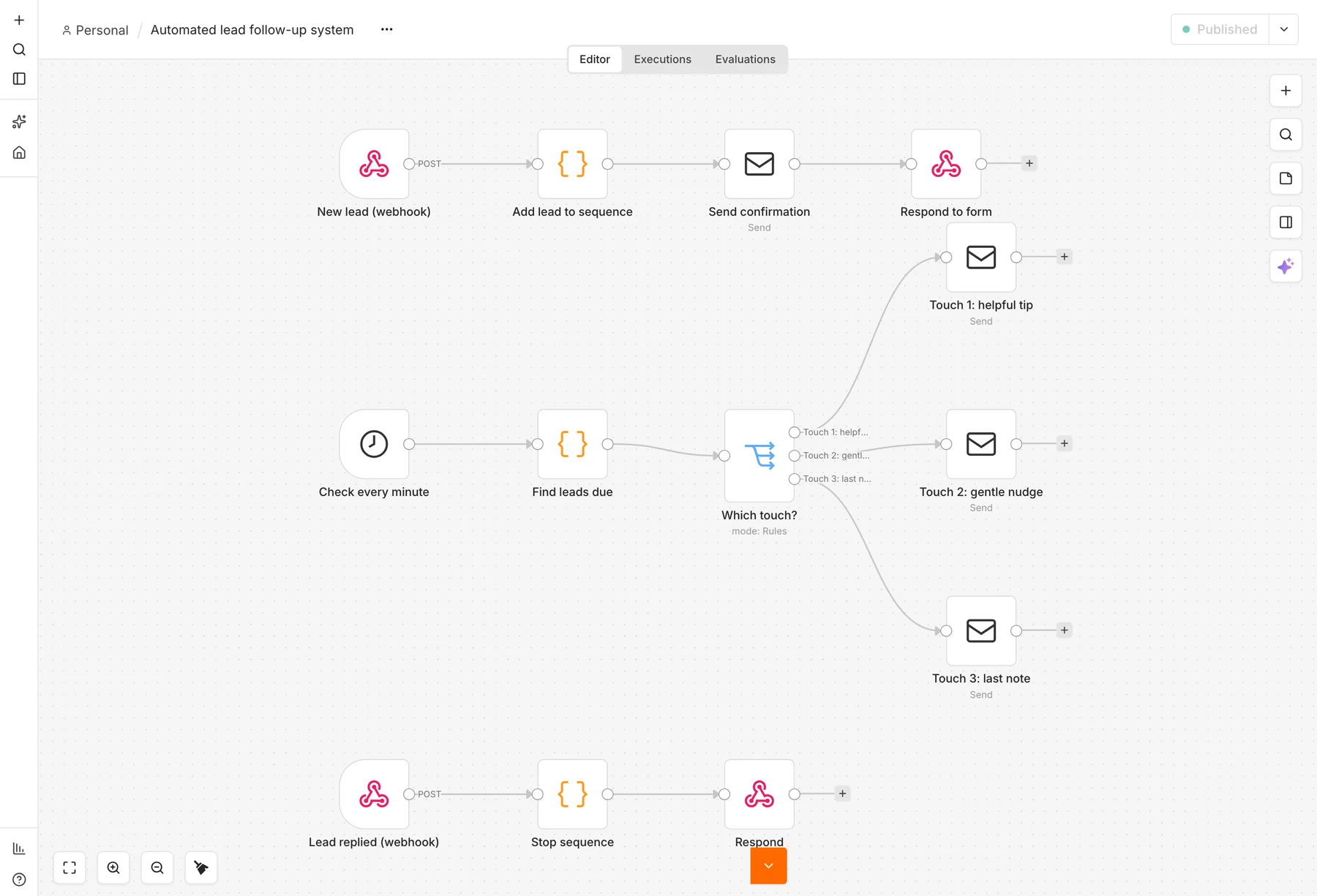
The workflow has three small flows sharing one list of leads: add (a webhook when a lead arrives), send (a schedule that checks every minute) and stop (a webhook that ends the sequence).
What does it cost to run? The software is free: self-hosted n8n may be used at no charge for internal business and personal use under its Sustainable Use License. What you pay for is somewhere to run it. A schedule only fires while n8n is running, so you need a computer or server that stays on. Sending email needs an SMTP account (many providers have a free tier), and n8n Cloud is a paid alternative if you prefer not to host it yourself.
Step 1: Add each new lead to the list
Create a Webhook node (POST, path follow-up-lead) and connect a Code node. It stores the lead in the workflow’s static data, keyed by email so the same person is never added twice, and records how many touches they have had and their status.
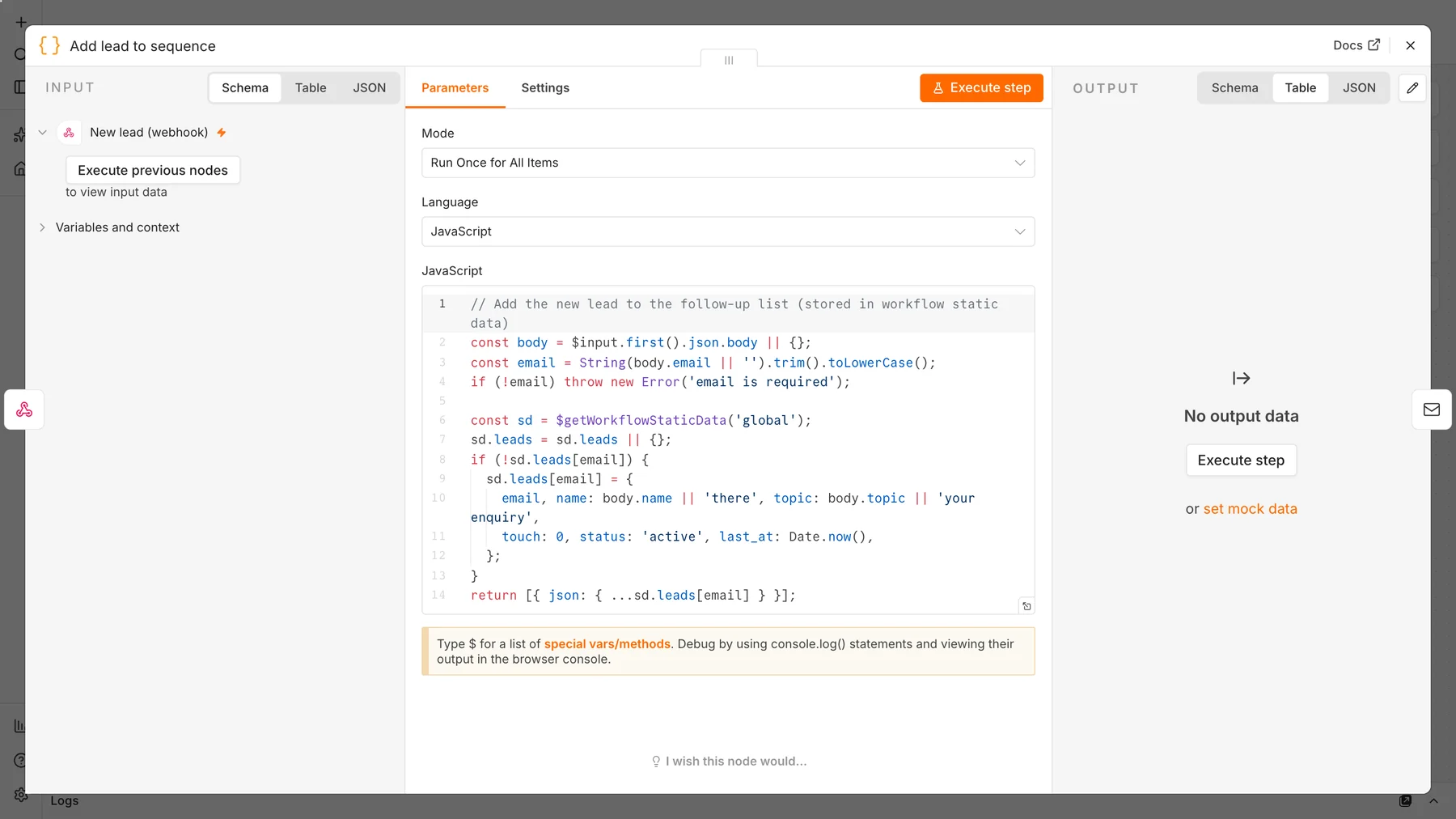
// Add the new lead to the follow-up list (stored in workflow static data)
const body = $input.first().json.body || {};
const email = String(body.email || '').trim().toLowerCase();
if (!email) throw new Error('email is required');

const sd = $getWorkflowStaticData('global');
sd.leads = sd.leads || {};
if (!sd.leads[email]) {
  sd.leads[email] = {
    email, name: body.name || 'there', topic: body.topic || 'your enquiry',
    touch: 0, status: 'active', last_at: Date.now(),
  };
}
return [{ json: { ...sd.leads[email] } }];
Then add a Send Email node for the instant confirmation and a Respond to Webhook node that returns a short confirmation to your form.
Step 2: Check for due follow-ups every minute
Add a Schedule Trigger that runs every minute (use every hour in production) and a Code node that finds leads whose next touch is due. The list of gaps at the top controls the timing. We used one minute between touches so we could test in minutes; in production use [2880, 2880, 4320], which is two, two and three days.
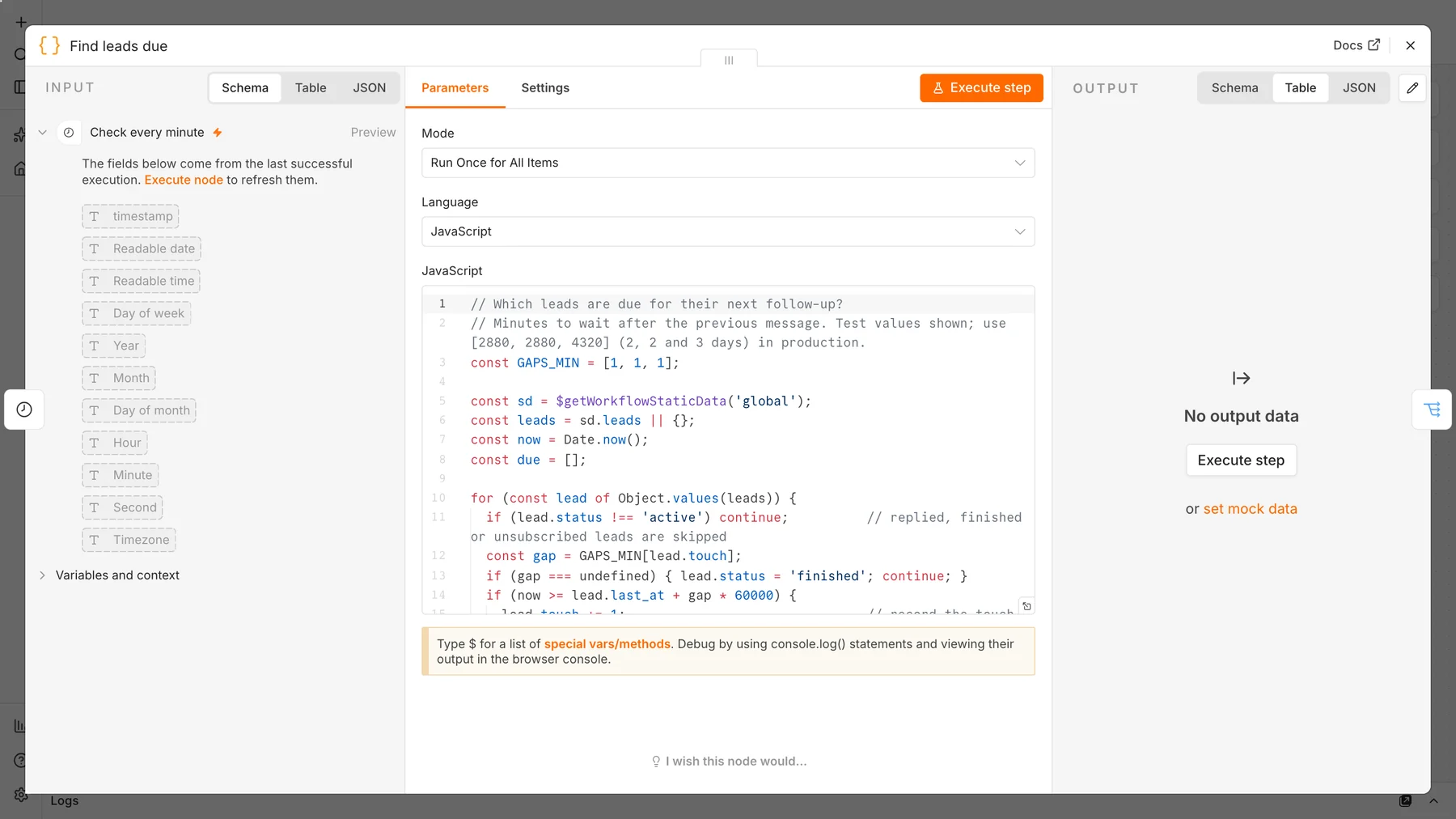
// Which leads are due for their next follow-up?
// Minutes to wait after the previous message. Test values shown; use [2880, 2880, 4320] (2, 2 and 3 days) in production.
const GAPS_MIN = [1, 1, 1];

const sd = $getWorkflowStaticData('global');
const leads = sd.leads || {};
const now = Date.now();
const due = [];

for (const lead of Object.values(leads)) {
  if (lead.status !== 'active') continue;          // replied, finished or unsubscribed leads are skipped
  const gap = GAPS_MIN[lead.touch];
  if (gap === undefined) { lead.status = 'finished'; continue; }
  if (now >= lead.last_at + gap * 60000) {
    lead.touch += 1;                               // record the touch before sending (at most once)
    lead.last_at = now;
    if (lead.touch >= GAPS_MIN.length) lead.status = 'finished';
    due.push({ json: { email: lead.email, name: lead.name, topic: lead.topic, touch: lead.touch } });
  }
}
return due;
Design note: the node records the touch before the email is sent. That guarantees a lead can never receive the same touch twice, at the cost of skipping a touch if your email server is down at that moment. For most small teams that is the safer trade-off.
Step 3: Route each touch and send the email
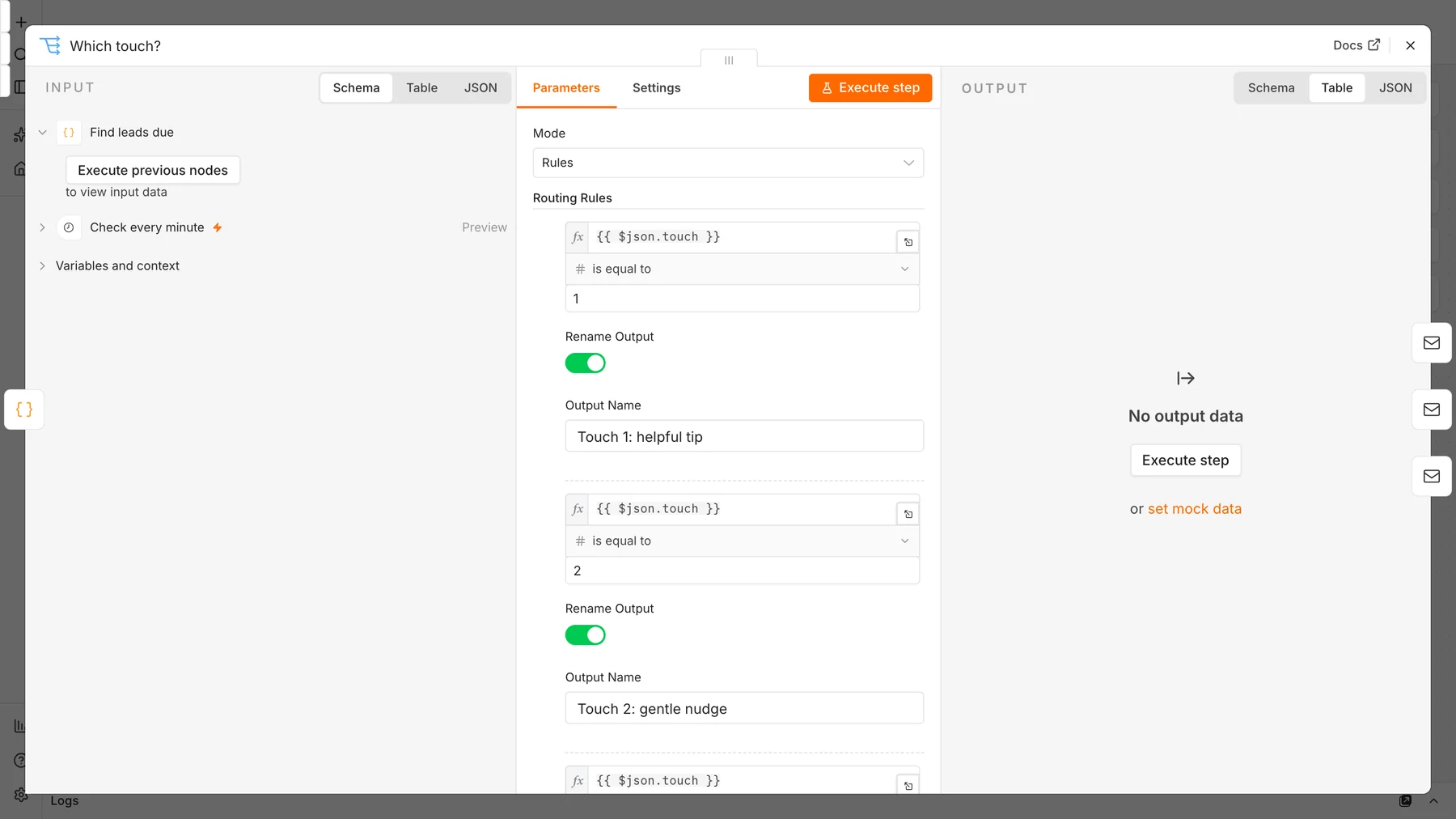
Add a Switch node with three rules that check touch equals 1, 2 or 3, and connect each output to its own Send Email node. Because the lead data passes straight through the Switch, each email can use {{ $json.name }}, {{ $json.topic }} and {{ $json.email }}.
Step 4: Stop when a lead replies
Add a second webhook (lead-replied) and a Code node that sets the lead’s status to replied or unsubscribed. Call it from wherever replies are detected: your CRM, your booking tool, or an email trigger. The scheduled check ignores anything that is not active.
// Stop the sequence for a lead who replied, booked or unsubscribed
const body = $input.first().json.body || {};
const email = String(body.email || '').trim().toLowerCase();
const sd = $getWorkflowStaticData('global');
const lead = (sd.leads || {})[email];
if (lead) lead.status = body.reason === 'unsubscribed' ? 'unsubscribed' : 'replied';
return [{ json: { email, found: !!lead, status: lead ? lead.status : 'not in sequence' } }];
Step 5: Test both behaviors
Publish the workflow, then send two test leads and make one of them reply after the first tip:
curl -X POST http://localhost:5678/webhook/follow-up-lead -H 'Content-Type: application/json' \
  -d '{"name":"Ava","email":"ava@northwind.example","topic":"invoice automation"}'
curl -X POST http://localhost:5678/webhook/follow-up-lead -H 'Content-Type: application/json' \
  -d '{"name":"Ben","email":"ben@harbor.example","topic":"invoice automation"}'

# after Ben's first tip arrives:
curl -X POST http://localhost:5678/webhook/lead-replied -H 'Content-Type: application/json' \
  -d '{"email":"ben@harbor.example"}'
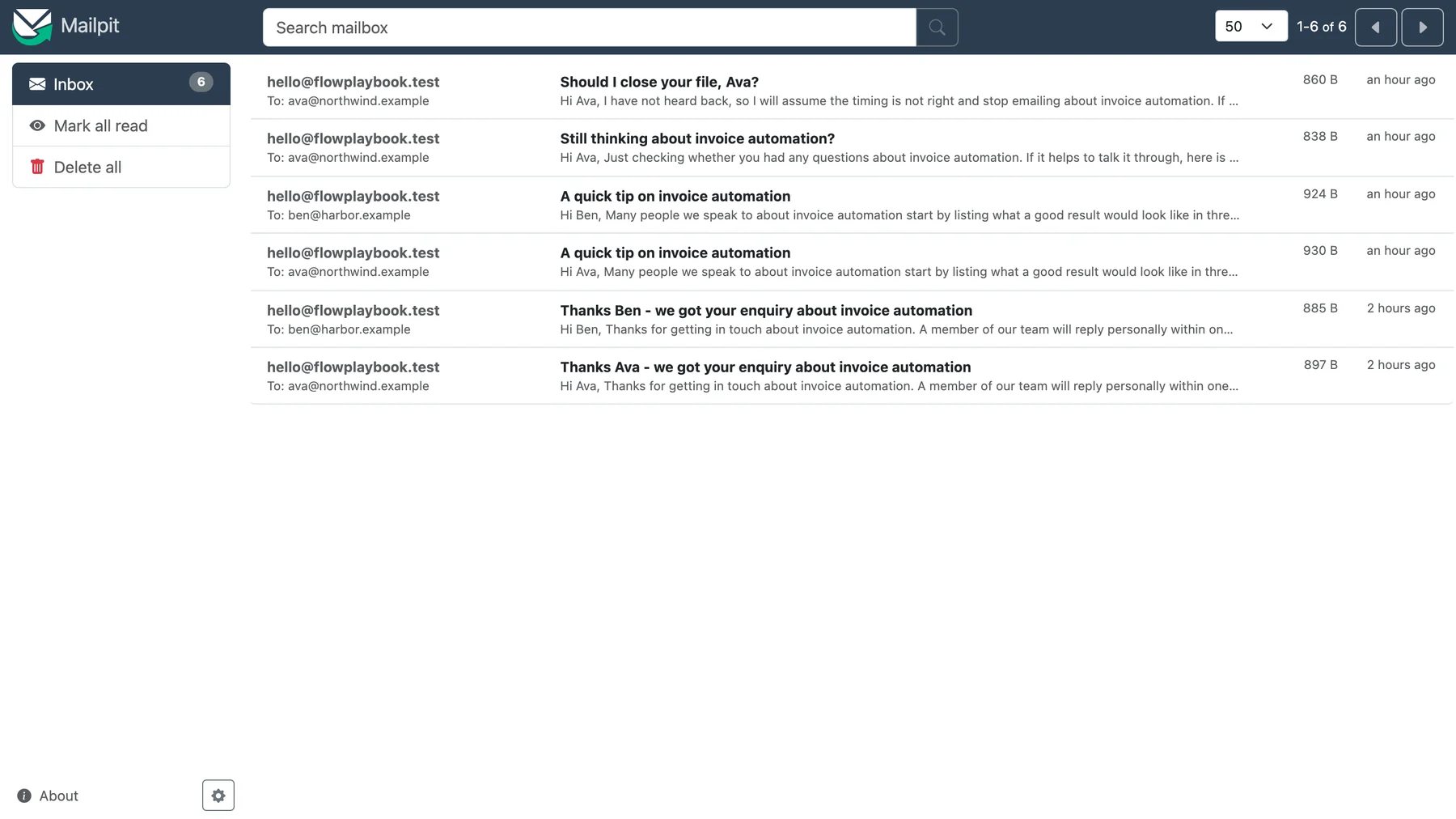
Our result: Ava received the confirmation and all three follow-ups (four emails). Ben received the confirmation and the first tip, replied, and received nothing else (two emails). That is exactly the behavior you want.
Troubleshooting
- Nothing sends: the workflow must be published for the Schedule Trigger to run, and n8n must stay running.
- A lead is emailed twice: the email address differs by case or spelling. The code lower-cases it; make sure your form does not add extra spaces.
- Static data is empty in manual tests: workflow static data is saved only for published (production) runs, so test with the production webhook URL.
Make it production-ready
- Use real storage. Static data is fine for a small list, but production systems should keep leads in Google Sheets, Airtable, a database or your CRM so your team can see and edit them. Replace the two Code nodes with the matching read and update nodes.
- Switch to real timing. Set the gaps to days, and run the schedule hourly. Add a check so messages only send during business hours in the lead’s time zone.
- Detect replies automatically. Connect the stop webhook to your CRM or booking tool so no one has to remember to call it.
- Protect deliverability. Send from an authenticated domain (SPF, DKIM, DMARC) and keep the sequence short.
- Add other channels carefully. Text messages have stricter consent rules in the U.S. than email, so add SMS only with explicit permission.
- Combine it with lead scoring. Hot leads should go straight to a person, as in the scoring workflow in our guide on how to generate sales leads, and only the rest should enter this sequence.
Keep every email compliant
Under the CAN-SPAM Act, each commercial email must use accurate sender details, an honest subject line, a valid postal address and a clear opt-out that you honor promptly (within 10 business days). The Federal Trade Commission lists civil penalties of up to $53,088 per violating email. Our templates include an address and an opt-out line; replace the placeholder address with yours. The EU, UK and other regions have stricter consent rules. This is not legal advice.
Follow-up email templates
TOUCH 1 (Day 2)
Subject: A quick tip on {topic}

Hi {name},

Many people we speak to about {topic} start by listing what a good result would look like in three months. It makes every later decision easier. Happy to share how others have approached it if that helps. Just reply to this email.

[Address] | Reply STOP to opt out
TOUCH 2 (Day 4)
Subject: Still thinking about {topic}?
Hi {name},
Just checking whether you had any questions. If it helps to talk it through, here is my calendar: [link]
[Address] | Reply STOP to opt outTOUCH 3 (Day 7)
Subject: Should I close your file, {name}?
Hi {name},
I have not heard back, so I will assume the timing is not right and stop emailing about {topic}. If that changes, reply any time and we will pick it up.
[Address] | Reply STOP to opt outWhat to measure
- Reply rate per touch: which message earns replies, so you can rewrite the weakest.
- Time to first reply: how quickly leads respond after each touch.
- Meetings booked: the outcome that matters.
- Unsubscribe and complaint rate: if either climbs, shorten or soften the sequence.
Frequently asked questions
How many follow-up emails should you send a lead?
Three to four is a good starting range: an instant confirmation plus two or three follow-ups spread over about a week. Stop earlier if the lead replies. More than five tends to irritate people and can damage your sender reputation.
How long should you wait between follow-ups?
Two to three days is a common gap for a first sequence. Short gaps feel pushy, and long gaps let interest fade. Track reply rate per touch and adjust.
Can I build an automated lead follow-up system for free?
Yes. n8n can be self-hosted for free, and the workflow in this guide needs only an SMTP account for sending email. Paid tools mainly add hosted storage, reply detection and reporting.
Should follow-up emails be personal or automated?
Both. Automation guarantees timely, consistent contact, and personal replies win the conversation. Use the automated sequence to earn the first reply, then take over by hand.
Sources and further reading
- The Short Life of Online Sales Leads, Harvard Business Review, 2011.
- CAN-SPAM Act: A Compliance Guide for Business, Federal Trade Commission.
- n8n Schedule Trigger documentation.
- n8n workflow static data.
- Mailpit, the test inbox used for the screenshots.