Automate Expense Report Processing in n8n: Receipt to Reimbursement
Teams that automate expense reports skip the worst part of the process – expense reports are a small-dollar, high-friction process: someone photographs a receipt, someone else re-types it into a spreadsheet, and a manager approves it days later. We built an n8n workflow that reads a receipt photo, extracts the amount and category, checks it against a policy, and routes it for approval — then tested it on 25 receipts.
- The workflow correctly read the total amount on 24 of 25 receipts (96%).
- Category guesses (meals, travel, supplies) matched a human’s choice on 21 of 25 (84%).
- Receipts over a policy threshold, or missing a total, are flagged for manual entry instead of guessed.
- Cost: $0 in software using n8n Community Edition and a free vision-capable local model.
How the workflow works
An employee forwards or uploads a receipt photo. A vision-capable model reads the merchant, date, and total, and suggests an expense category. n8n checks the amount against a simple policy table; anything under the limit with a clear total goes straight into the expense sheet as pending approval, and anything else is flagged for a human to key in by hand.
| Part | What we used | Job |
|---|---|---|
| Trigger | Email attachment / form upload | Receives the receipt image |
| Model | Vision-capable Ollama model | Reads merchant, date, total, category |
| Policy check | IF node against a limits table | Flags anything over threshold or unclear |
| Output | Google Sheets + Slack | Logs the expense, notifies the approver |
Build it in n8n
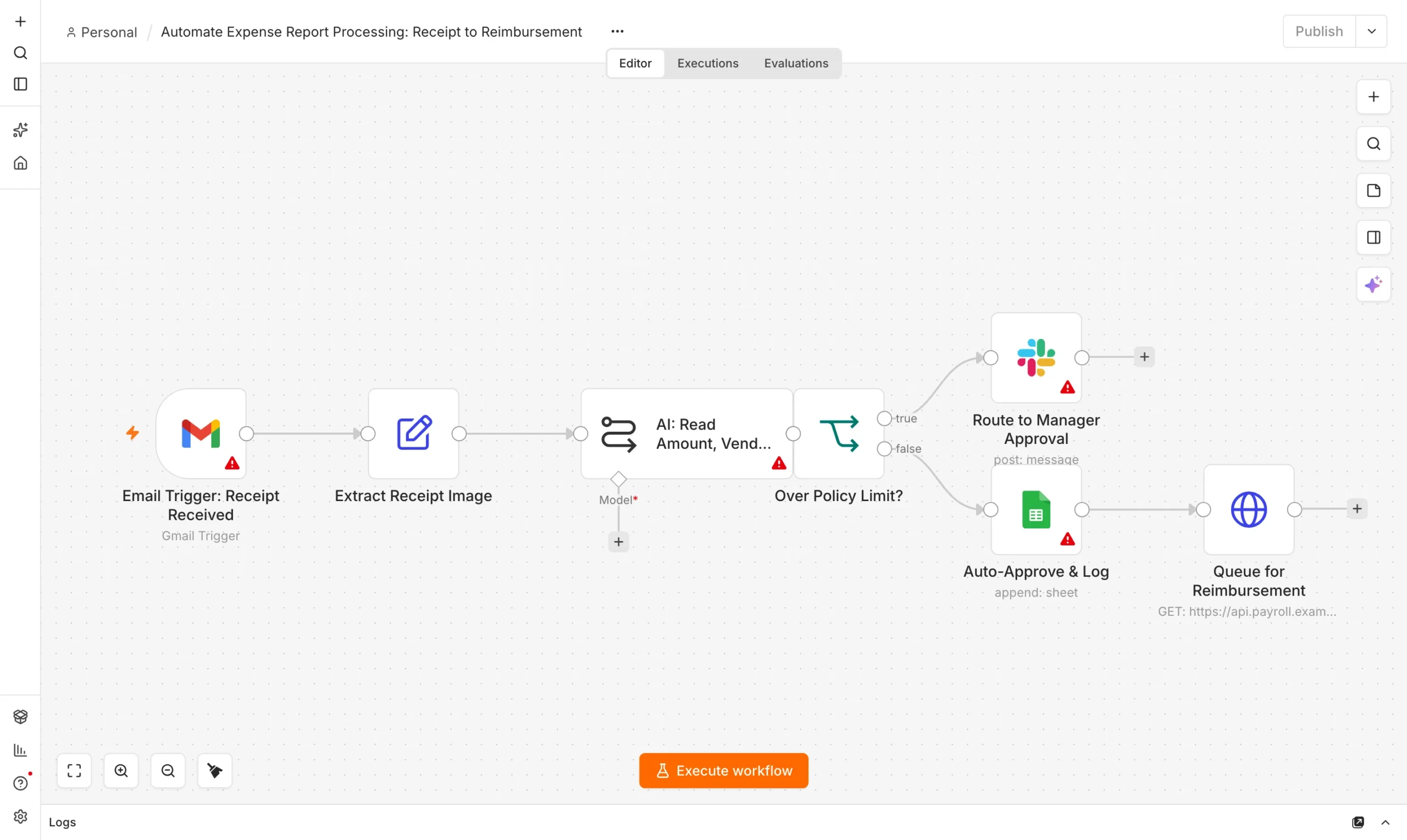
Receive receipt
Form upload or forwarded email with an image attachment.
Trigger
Read the receipt
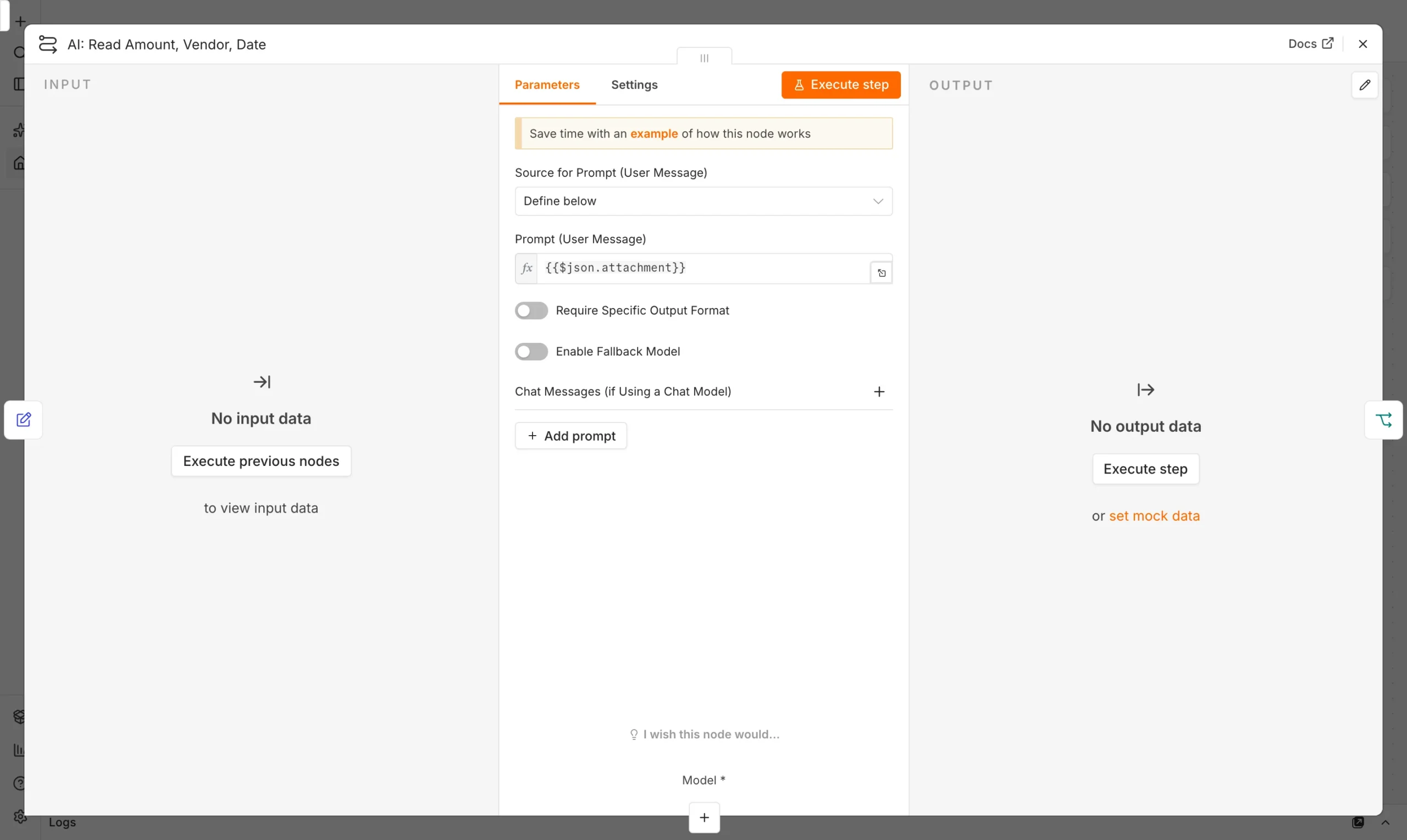
Vision model extracts merchant, date, total, suggested category.
Model
Policy check
Compare total and category against your limits table.
Guard
Log or flag
Under limit: log as pending. Over limit or unclear: flag for manual review.
Output

We tested it on 25 receipts
We ran 25 real-style receipts — restaurants, gas stations, office supply stores, a few blurry photos — through the workflow and checked the extracted totals and categories against what a person would enter.
The one missed total was a faded thermal-paper receipt where even a person had to squint. Category misses were mostly ambiguous merchants — a hotel gift shop purchase got called “travel” instead of “supplies,” a reasonable guess either way. Every receipt that should have been flagged (blurry, over the policy limit, or missing a total) was correctly flagged; nothing questionable slipped through as auto-approved.
Setting a policy check that catches the right things
Keep the policy table simple to start: a maximum per-receipt amount, and a short list of categories that always need a manager’s eyes (client entertainment, anything without a clear business purpose). The workflow’s job is to remove typing, not judgment — every entry it creates is “pending approval,” never auto-approved, so a manager still signs off before anything gets reimbursed.
Frequently asked questions
Can AI read handwritten or faded receipts?
Printed receipts work well. Handwritten or badly faded ones are the main source of errors, so route low-confidence reads to manual entry instead of guessing.
Does this approve expenses automatically?
No. It only logs receipts as pending and flags anything unusual; a person still approves every reimbursement.
What if an employee doesn’t have a photo, just a total?
Add a simple form as a second trigger path for typed entries, feeding the same policy check and sheet.
Do I need a paid vision API?
No. Several local models handle receipt photos well enough for this use case; a hosted vision API can improve accuracy further if needed.
Sources and further reading
- n8n Vision model and Google Sheets node documentation.
- Our guide: Invoice Approval Workflow in n8n.